
Why a Macro Photography Editing Guide Can Transform Your Close-Up Shots
A macro photography editing guide is the missing piece for most close-up photographers. You’ve captured a sharp shot of a dewdrop or insect eye — but something still feels flat. The good news? Post-processing can fix that.
Here’s a quick overview of the core macro editing steps:
- Select your best RAW file — RAW gives you far more control than JPEG
- Crop tightly — bring your subject front and center, remove distractions
- Set exposure — use the histogram to protect shadows and highlights
- Adjust white balance — correct color casts from dominant backgrounds
- Sharpen carefully — use masking to target only the subject
- Reduce noise — especially if you shot at high ISO
- Stack focus layers (when needed) — for greater depth of field
Macro photography is unique. At 1:1 magnification, your lens reveals textures and details invisible to the naked eye. But that same closeness also amplifies every flaw — soft focus, flat contrast, color shifts, and noise all show up fast.
Here’s something worth remembering: a great macro image is roughly 50% capture and 50% post-production. Even a technically solid shot needs editing to truly come alive.
The challenge for most beginners is knowing where to start and how far to go. Too little editing and your image stays flat. Too much and it looks artificial.
This guide walks you through every step — from your first crop to your final export — in plain language, with no advanced skills required.
Essential First Steps in Your macro photography editing guide
Before we dive into the sliders and curves, we need to talk about the foundation. In our experience at Ciber Conexão, the biggest mistake beginners make isn’t a lack of fancy software; it’s failing to prepare the image correctly at the start.
The Power of RAW vs. JPEG
If there is one rule to live by in macro, it is this: shoot in RAW. Macro subjects often involve complex textures and subtle color gradients. A JPEG is a “baked” file where the camera has already made permanent decisions about color and contrast. RAW files, however, retain all the data your sensor captured. This allows us to recover details in a bright flower petal or a dark beetle shell that would be lost forever in a JPEG.
Tight Cropping for Impact
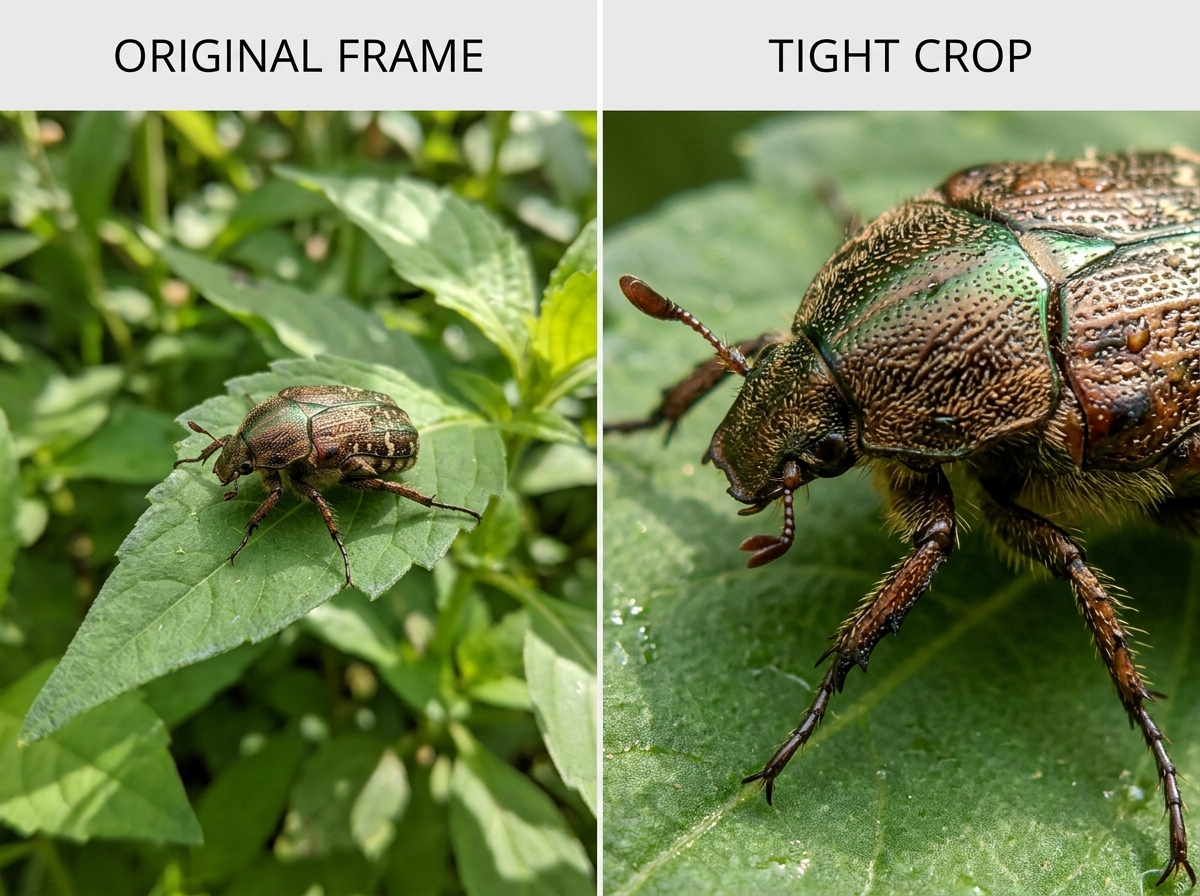
In macro photography, “close” is rarely close enough. Because most people view images on small screens or as thumbnails, a tight crop is essential to reveal those hidden details. We often use a 1:1 reproduction ratio, but even then, the subject can get lost in the frame.
When you crop, don’t just center the subject. Use the crop-and-composition-editing-tips we recommend, such as the Rule of Thirds, to create a sense of movement. If you are using a high-resolution sensor (like a 46-megapixel camera), you can often crop by 50% and still have plenty of detail for a large print.
Resizing for the Web
Once you’ve cropped, you need to think about where the photo is going. If you’re uploading to a portfolio or social media, we suggest resizing the width to approximately 1024px. This provides a perfect balance between showing off fine detail and ensuring the page loads quickly. If you’re just starting out, check out some beginner-friendly-photo-editing-software to help automate these resizing tasks.
Mastering Exposure and Contrast for Fine Detail
Macro photos often suffer from “flatness.” Because we frequently use diffusers or shoot on overcast days to avoid harsh glares on shiny insects, the resulting images can lack “pop.” This is where exposure and contrast adjustments come in.
Reading the Histogram
The histogram is your best friend. It’s a mathematical map of the light in your photo. We want to ensure that the “mountain” of data isn’t hitting the far left (pure black) or the far right (pure white). If it hits the edges, you’ve “clipped” your data, meaning those details are gone.
Setting Black and White Points
A pro trick we use is holding the Alt (Windows) or Option (Mac) key while dragging the “Blacks” and “Whites” sliders. This shows you exactly when pixels start to clip. By setting a true black and a true white point, you instantly expand the dynamic range of your photo, making it look less “muddy.”
The Magic of S-Curves
While the basic contrast slider is okay, we prefer the Tone Curve. By creating a subtle “S” shape—lifting the highlights slightly and dropping the shadows—you gain much more nuanced control. This technique is similar to how we approach correcting-lighting-in-bird-images, where preserving feather or scale detail is paramount.
Localized Adjustments: Radial Gradients and Dodge/Burn
Sometimes the whole image doesn’t need a change—just one part.
- Radial Gradient: Use this to create a soft “spotlight” on your subject. By slightly increasing the exposure and sharpness inside the circle and softening the background outside of it, you create immediate depth.
- Dodge and Burn: This is the old-school darkroom technique of selectively brightening (dodging) and darkening (burning). Use a soft brush at low opacity to “paint” light onto the highlights of a leaf or the eyes of a spider. It adds a 3D feel that a flat slider can’t match.
Advanced Sharpening and Color Correction
Sharpening a macro photo is a delicate dance. If you go too far, you get “halos” and ugly digital artifacts. If you don’t go far enough, the image looks soft.
Advanced Sharpening Techniques in a macro photography editing guide
One of the most effective pro secrets is sharpening in Lab Color Mode. In standard RGB mode, sharpening can sometimes shift colors. In Lab mode, you can sharpen the “Lightness” channel specifically, which enhances detail without touching the color data.
We also recommend using Smart Sharpen or the Unsharp Mask on a duplicate layer. This allows you to use the eraser tool to remove sharpening from the background. Why sharpen the background? It only introduces noise. You want the viewer’s eye to go straight to the crisp details of the subject. For more on this, see our guide on sharpening-bird-images-in-post.
Correcting Color and White Balance
Macro shots are notorious for “color casts.” If you are shooting a tiny insect on a bright green leaf, that green light reflects onto the subject, making it look sickly.
- White Balance: Don’t rely on Auto White Balance. We often set our cameras to “Daylight” for consistency and then fine-tune the Temperature and Tint sliders in post.
- Vibrance vs. Saturation: This is crucial. Saturation boosts every color equally, which can lead to “clipping” in bright reds or yellows. Vibrance is smarter; it primarily boosts the less-saturated colors, keeping the image looking natural. This is a tip we frequently share for those looking to enhance-colors-in-bird-photography.
- HSL Sliders: Use the Hue, Saturation, and Luminance (HSL) panel to target specific colors. If that green background is too distracting, you can drop its saturation or shift its hue slightly to make the subject stand out.
Scientific Insight: According to research on color constancy, our brains are very good at “correcting” colors in real life, but they are less forgiving with photos. If your white balance is off, the viewer will immediately feel that something is “wrong” with the image.
Focus Stacking and Noise Reduction
One of the biggest hurdles in macro is the incredibly shallow depth of field. Even at f/11, you might only have a sliver of the subject in focus. This is where focus stacking becomes a game-changer.
Understanding the Focus Stack
Focus stacking involves taking multiple photos of the same subject, each with the focus shifted slightly further back. You then blend these in software to create one image that is sharp from front to back.
| Feature | Single Shot Macro | Focus Stacked Macro |
|---|---|---|
| Depth of Field | Very shallow | Deep / Complete |
| Aperture | Usually high (f/11-f/22) | Can be lower (f/5.6-f/8) |
| Sharpness | Risk of diffraction | Maximum sharpness |
| Effort | Low | High (requires tripod/software) |
Blending and Cleaning
Software like Helicon Focus or Adobe Photoshop can automatically align and blend these layers. However, keep an eye out for “ghosting” artifacts where the subject might have moved slightly between shots.
Once blended, use the spot removal tool to get rid of sensor dust. Because we use small apertures in macro, every tiny speck of dust on your sensor will show up as a dark circle in the background. It’s a tedious but necessary step for improving-clarity-in-bird-shots and macros alike.
Noise Reduction for High ISO
If you’re shooting handheld or chasing a fast-moving bug, you might have to push your ISO to 1600 or higher. This introduces “grain” or noise.
- Luminance Noise: This looks like sand. Use the Luminance slider in the Detail panel, but don’t overdo it, or your subject will look like it’s made of plastic.
- Color Noise: These are the random purple and green dots. Modern software is excellent at removing this with very little loss of detail.
- AI Noise Reduction: Newer tools use AI to “guess” where detail should be, often producing natural-looking-edits-for-bird-photos and macros that were previously unusable.
Focus Stacking and Final Touches in Your macro photography editing guide
The final 5% of your edit is often the most important. After stacking and noise reduction, do one last pass to removing-distractions-from-bird-photos—like a stray blade of grass or a bright highlight in the corner of the frame that pulls the eye away from the subject.
Check your export settings one last time. For social media, ensure you are converting the color profile to sRGB. If you leave it in ProPhoto or Adobe RGB, the colors may look dull and washed out when viewed on a web browser.
Frequently Asked Questions about Macro Editing
Why is post-processing so important for macro images?
In macro photography, the camera sensor is pushed to its limits. We often deal with very little light, extreme magnification, and tiny depths of field. Post-processing allows us to recover the contrast and sharpness that the physics of the lens might have softened. It’s about 50% of the creative process.
How do I avoid over-sharpening my macro photos?
The key is the Masking slider. In Lightroom, hold the Alt key while dragging the Masking slider. The white areas show what will be sharpened, and the black areas will be ignored. By masking out the smooth background, you can sharpen the subject aggressively without creating “crunchy” noise in the bokeh.
What is the best software for focus stacking?
While Photoshop can do it (using “Auto-Align Layers” and “Auto-Blend Layers”), dedicated software like Helicon Focus or Zerene Stacker is much faster and handles complex overlaps (like insect hairs) with far fewer errors.
Conclusion
Mastering a macro photography editing guide isn’t about learning every single button in Photoshop; it’s about making subtle, intentional adjustments that honor the subject. Whether you are bringing out the iridescent colors of a beetle or the delicate veins of a petal, the goal is always a natural, breathtaking result.
At Ciber Conexão, Hugo Andrade and our team believe that anyone can produce professional-level macro work with a little patience and the right workflow. Start with a sharp RAW file, crop for impact, and use localized adjustments to guide the viewer’s eye.
Ready to take your skills further? Explore more of our photography-tips and start transforming your “good” shots into masterpieces today!
