
A Crooked Horizon Is Killing Your Photos (Here’s How to Fix It)
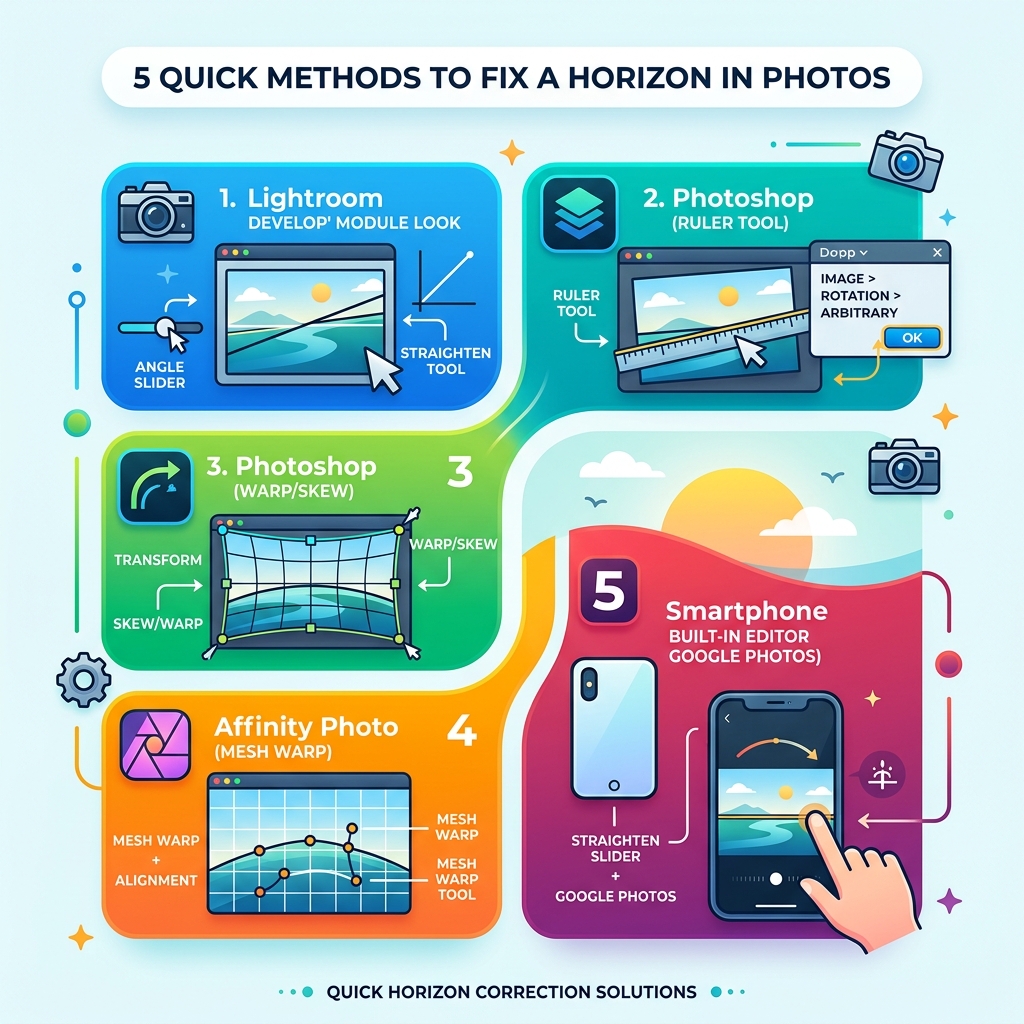
Fix horizon in photos quickly with these methods:
- Lightroom – Open Develop module, press R for Crop Overlay, drag the angle slider or use the Straighten tool along the horizon line
- Photoshop (Ruler Tool) – Select the Ruler Tool, drag it along the crooked horizon, then go to Image > Image Rotation > Arbitrary and click OK
- Photoshop (Warp/Skew) – Use Edit > Transform > Skew or Warp for curved horizons caused by wide-angle lenses or drone panoramas
- Affinity Photo – Use the Mesh Warp tool to push and pull a curved horizon into alignment
- Smartphone – Use the built-in straighten slider in Google Photos or your phone’s native editor
You took a beautiful sunset shot at the beach. The colors are perfect. The light is golden. But something feels off — and then you see it. The horizon is tilted, like the whole ocean is sliding out of frame.
It happens to almost every photographer. Without a tripod or a built-in level, keeping the camera perfectly flat is genuinely hard. And even with one, wide-angle lenses can bend a perfectly straight horizon into a subtle curve.
The good news? A crooked horizon is one of the easiest problems to fix in post-processing. A few clicks in Lightroom, Photoshop, or even your phone’s photo app can take a shot from “hasty snap” to polished and professional.
Why does it matter so much? Because our brains are wired to notice tilted lines. We instinctively want to tilt our heads to correct them — and that split-second discomfort pulls a viewer out of your photo. A straight horizon, on the other hand, feels calm, balanced, and intentional.
This guide walks you through every method, from the simplest one-click fix to advanced tools for curved panoramas and drone shots.
Why You Must Fix Horizon in Photos for Professional Results
We have all seen them on social media: stunning landscapes where the sea looks like it is about to pour out of the bottom left corner of the screen. While the photographer might have been focused on the colors or the subject, a wonky horizon screams “hasty snap.” It instantly drains the professional credibility of an image.
In photography, visual harmony is everything. When we look at a photo, our brains act like a “built-in ruler.” We subconsciously seek out horizontal and vertical lines to orient ourselves. If those lines are just a few degrees off, it creates a psychological “itch” that the viewer can’t quite scratch. They might not even know why they don’t like the photo, but they will feel a sense of imbalance.
For those of us aiming to pitch images to editors or build a high-quality portfolio, a straight horizon is a non-negotiable standard. Editors often view a crooked horizon as a sign of laziness or a lack of attention to detail. It’s one of the most common mistakes we see when reviewing portfolios, yet it’s the simplest to correct.
Beyond just the “line where the sky meets the earth,” this concept extends to architectural integrity and shorelines. If you are composing bird photos with urban backgrounds, a tilted building in the background can be just as distracting as a slanted ocean. Straightening these elements is a key part of removing distractions from bird photos and ensuring the viewer’s eye goes exactly where you want it to go.

Proactive Prevention: Getting it Right In-Camera
While we have amazing tools to fix horizon in photos during post-processing, the best practice is always to get it as straight as possible while you are standing in the field. Why? Because every time you rotate a photo in software, you have to crop the edges. If you framed your shot tightly, you might lose a bird’s wingtip or a beautiful piece of foreground greenery.
Here are our top tips for in-camera precision:
- Use a Tripod with a Bubble Level: This is the gold standard. Many modern tripods come with a small spirit level built into the legs or the head. If yours doesn’t, you can buy a cheap “hot shoe level” that slides into the top of your camera.
- Activate Viewfinder Grids: Most DSLRs and mirrorless cameras allow you to overlay a grid (usually a 3×3 Rule of Thirds grid) in the viewfinder or on the LCD screen. Align your horizon with one of these horizontal lines.
- Electronic Levels: Many modern cameras feature an “Electronic Level” or “Virtual Horizon” that appears on the screen as a bar that turns green when you are perfectly level.
- Leave “Crop Room”: If you are shooting handheld in a rocky or unstable environment, zoom out just a tiny bit more than you think you need. This gives you the buffer required to rotate and crop later without ruining your composition.
Getting the horizon right is especially tricky when exploring angles and perspectives in bird photography. When you are tracking a fast-moving subject, the horizon is often the last thing on your mind. By using these aids, you make the post-processing stage much faster. For more on this, check out our Category: Photography Tips.
Step-by-Step: How to Fix Horizon in Photos
If you’ve already taken the shot and it’s a bit “wonky,” don’t panic. We have several ways to fix it depending on the software you use. Whether you are using beginner friendly photo editing software or professional suites, the process is straightforward.
Using Lightroom to Straighten Horizons
Lightroom is perhaps the most popular tool for this because it’s non-destructive. You can always go back and change it later.
- Enter the Develop Module (Shortcut:
D). - Select the Crop Overlay tool (Shortcut:
R). - You can manually rotate the image by hovering your mouse just outside the corner handles and dragging.
- Alternatively, use the Straighten Tool (the little ruler icon). Click and drag a line along your horizon. Lightroom will automatically rotate the image to make that line perfectly horizontal.
- Check the Constrain to Image box to ensure you don’t end up with white edges around your photo.
For a deeper dive, check out this guide on Horizon and Perspective Straightening in Adobe Lightroom.
Methods Comparison Table
| Method | Best For | Pros | Cons |
|---|---|---|---|
| Basic Rotation | Simple tilts | Fast and easy | Causes most cropping |
| Skew | Perspective issues | Fixes one side only | Can look “smeared” if overdone |
| Warp/Mesh Warp | Curved/Drone horizons | Fixes “banana” horizons | Requires more manual skill |
Using the Ruler Tool to Fix Horizon in Photos
Photoshop offers a more “surgical” approach. One of our favorite “hidden” tricks is the Ruler Tool. It’s perfect for beginner bird photo editing tips because it takes the guesswork out of the angle.
- Find the Eyedropper Tool in the toolbar, right-click it, and select the Ruler Tool.
- Click and drag the ruler along your crooked horizon line.
- Go to the top menu: Image > Image Rotation > Arbitrary.
- Photoshop will automatically calculate the exact angle needed to level that line. Click OK.
- Your image is now perfectly straight! You will just need to use the Crop tool to clean up the edges.
This method is incredibly precise and is a staple in our Photoshop tips for bird photos.
Correcting Curved Drone and Panorama Horizons
Sometimes a horizon isn’t just tilted; it’s bent. This “banana effect” is common in drone photography and wide-angle panoramas. A simple rotation won’t fix a curve.
To fix a curved horizon in Photoshop or Affinity Photo:
- Mesh Warp / Warp Tool: In Photoshop, go to
Edit > Transform > Warp. In Affinity Photo, select theMesh Warptool. - A grid will appear over your photo. You can click and drag individual “control points” to push the horizon down in the middle or pull the corners up.
- Skew: If one side of the horizon looks higher than the other due to lens distortion, use the
Skewtool to pull just one corner of the image up or down. - Free Transform: Once the horizon is straight, you might have white gaps at the corners. You can use
Free Transformto slightly stretch the corners out to fill the frame, which helps you turn pixels into perfection.
Advanced Solutions to Fix Horizon in Photos Without a Clear Line
What happens if there is no sea or flat land to guide you? If you are shooting in a forest or a marsh, finding a “level” can be a nightmare. In these cases, we look for alternative visual guides.
- Vertical Trunks: In a forest, look for the trees in the center of the frame. Trees at the edges often lean inward due to lens distortion, but the ones in the middle should be vertical.
- Shorelines: While a winding shoreline isn’t a straight line, its general “weight” should feel balanced.
- Water Reflections: This is a pro secret. In a perfectly still lake, the distance from a point on an object to the waterline should match the distance from the waterline to that point’s reflection. If the reflection is “shifted” to one side, your photo is tilted.
- Puppet Warp: If a specific part of your horizon is wonky but the rest is fine, Photoshop’s
Puppet Warpallows you to drop “pins” and move specific sections of the image while keeping others locked in place.
Using these guides is essential when vertical or horizontal framing tips for bird photography fail you in the field.
Frequently Asked Questions about Straightening Horizons
Does straightening a photo reduce its quality?
Technically, yes, but usually not in a way that is visible to the naked eye. When you rotate an image, the software has to “re-calculate” where the pixels sit (this is called interpolation). This can lead to a very slight loss of sharpness. However, with modern high-resolution cameras, this is negligible. The bigger issue is the loss of resolution from cropping the corners. If you are worried about sharpness, always follow up with sharpening bird images in post or improving clarity in bird shots.
Can I fix a horizon on my smartphone?
Absolutely! Most people editing pigeon photos on mobile or using apps for iPhone bird photo editing don’t need Photoshop.
- Google Photos: Open a photo, tap Edit > Crop, and it will often auto-straighten for you. If not, use the dial to rotate.
- Native Editors: Both iOS and Android have built-in “Straighten” sliders in their photo galleries.
When is a tilted horizon actually better?
There is a technique called the “Dutch Angle” (or canted angle) where you intentionally tilt the camera to create a sense of unease, excitement, or movement. This is great for creative portraits or action shots. However, the rule of thumb is: If you’re going to tilt, make it look intentional. A 1-degree tilt looks like a mistake; a 25-degree tilt looks like a choice. Always refer back to crop and composition editing tips to see if a tilt serves your story.
Conclusion
At Ciber Conexão, we believe that the smallest details make the biggest difference. Learning how to fix horizon in photos is a fundamental skill that separates the amateurs from the pros. Whether you are using the precise Ruler Tool in Photoshop or the quick sliders in Lightroom, taking those extra thirty seconds to level your image will transform your work.
Remember to keep your editing non-destructive whenever possible, and always keep an eye on your edges to avoid losing important parts of your composition. If you want to dive deeper into making your images pop, check out our more info about photo editing services and start turning your snapshots into masterpieces today!
