
Why Bird Photo Editing in Photoshop Changes Everything
Bird photo editing in Photoshop is one of the most rewarding skills a wildlife photographer can learn — and one of the most frustrating to figure out alone.
Here’s a quick overview of the core steps most photographers use:
- Crop and select your best shots in Lightroom
- Fix exposure and color — especially tricky with white birds
- Clean up the background using Content-Aware Fill or Clone Stamp
- Reduce noise with tools like Topaz DeNoise AI or Adobe Camera Raw
- Sharpen selectively — eyes and feathers only, not the whole image
- Composite or blur backgrounds to make your bird pop
- Add final touches like vignettes and color grading
Bird photos come with a unique set of challenges. White birds pick up blue or green color casts on cloudy days. Backgrounds are often cluttered with distracting branches or muddy colors. Feather detail gets lost in shadows or blown out in bright light.
And that’s before you even open Photoshop.
The good news? You don’t need advanced skills to fix these problems. The right workflow — even a simple one — can turn a flat, noisy snapshot into a sharp, polished image that looks like it belongs in a nature magazine.
This guide walks you through every stage, from your first RAW file to your first export.

Essential Pre-Processing and the Lightroom-to-Photoshop Workflow
Before we even touch a pixel in Photoshop, the real work begins in the RAW processor. For most of us, that means Lightroom. We’ve found that a “hybrid” approach-starting in Lightroom and finishing in Photoshop-yields the most professional results.
The first step is ruthless photo selection. We always suggest choosing images where the bird’s eye is sharp and the posture is dynamic. Once you have your winner, start with beginner-bird-photo-editing-tips like getting your crop right. Pressing the ‘R’ key in Lightroom to crop early saves you a massive amount of time; why spend twenty minutes cleaning up a background branch that you’re just going to crop out anyway?
One of the most powerful modern tools at our disposal is Lightroom’s Select Subject masking. This AI-driven feature allows you to isolate the bird instantly. You can then adjust the exposure or temperature of the bird independently from the sky or trees behind it. This is vital for photoshop-tips-for-bird-photos because it ensures your base image is balanced before you move into the heavy-duty editing phase. If you want Adobe’s official overview of the broader workflow, their Photoshop documentation is a useful reference alongside practical field-tested editing habits.
Our Essential Pre-Processing Checklist:
- Workspace Customization: Set up your Photoshop panels so Layers, Properties, and History are always visible.
- RAW Conversion: Use a fixed white balance like “Daylight” or “Cloudy” for consistency rather than letting “Auto” shift between frames.
- Lens Corrections: Always enable profile corrections to remove vignetting and chromatic aberration.
- Initial Masking: Use Select Subject to lift shadows slightly on the bird’s underside.
By the time you right-click and select “Edit in Adobe Photoshop,” your image should already have a solid tonal foundation.
Mastering Bird Photo Editing in Photoshop: Color and Exposure
White birds are the “final boss” of bird photography. Whether it’s a Snowy Egret or a Tundra Swan, white plumage acts like a mirror, reflecting the blue of the sky or the green of the forest. This creates distracting color casts that can make a beautiful bird look “muddy.”
To enhance-colors-in-bird-photography, we need to balance realism with aesthetics. While a pure white bird might look “clean,” it can also look fake if it doesn’t retain some of the environmental light. However, heavy blue shifts from a cloudy day or golden hour shifts that turn a bird orange need careful correction.
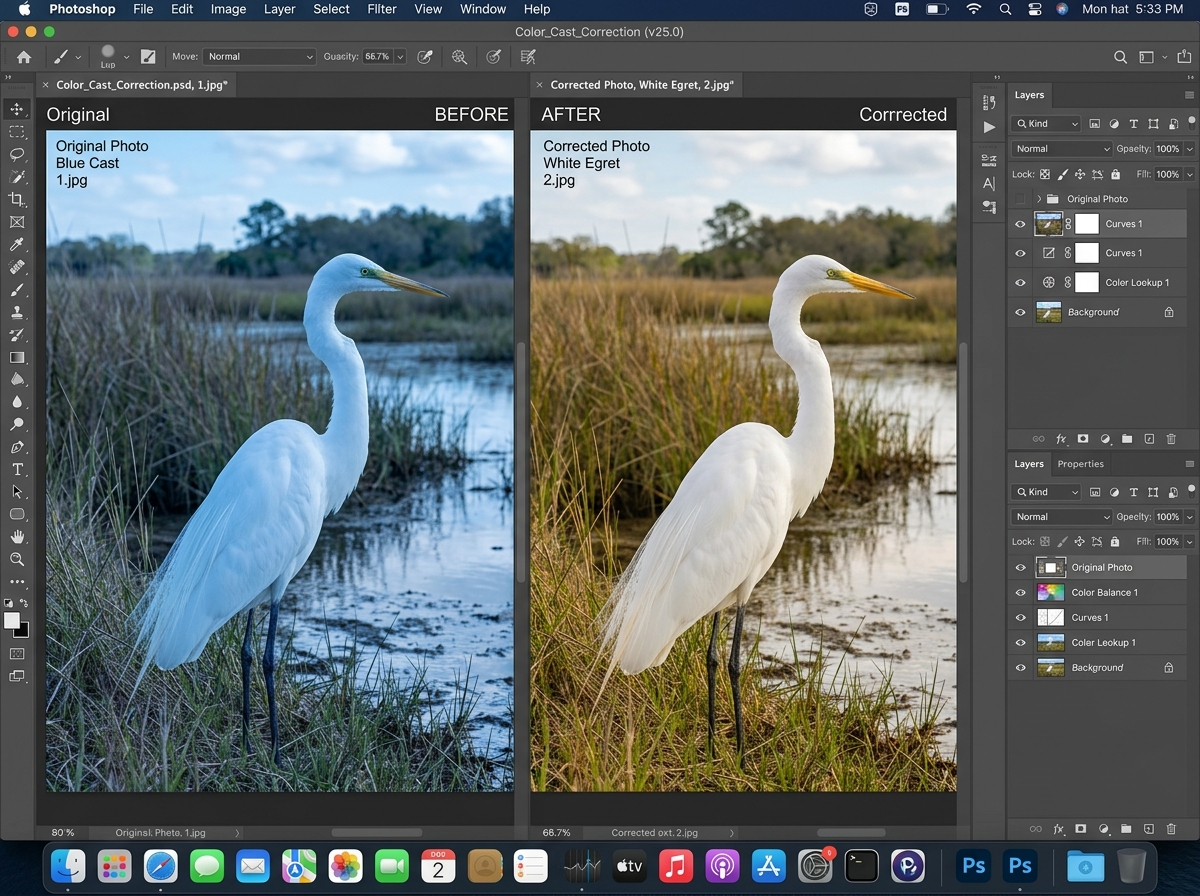
When correcting-lighting-in-bird-images, we rely on three heavy hitters: Curves, Hue/Saturation, and Color Balance.
- Curves: This is your best friend for making whites “pop.” By creating a subtle S-curve, you can brighten the highlights just enough to show detail without clipping the whites into a featureless blob.
- Hue/Saturation: This is where we target those pesky casts. If your egret looks like it went for a swim in blue ink, go to the Blue channel in Hue/Saturation and drop the saturation and increase the lightness slightly.
- Color Balance: Use this to add a touch of warmth back into the highlights if the bird looks too “cold.”
A pro tip we’ve gathered is that monitor calibration is non-negotiable. If your screen isn’t calibrated, you might be “fixing” a blue cast that isn’t actually there, only to find your bird looks yellow on everyone else’s phone! Aiming for 80% color accuracy through proper tools can save you hours of re-editing.
Correcting Color Casts for White Bird Photo Editing in Photoshop
To achieve natural-looking-edits-for-bird-photos, try using a Hue/Saturation adjustment layer with a layer mask. Instead of desaturating the whole bird, use a soft white brush to paint the desaturation only onto the areas with the heaviest cast (usually the shadows under the wings).
If you find your highlights are nearing the “clipping” point (where they turn pure white with no detail), pull back the “Whites” slider in the Camera Raw filter or use the Curves tool to gently nudge the top-right point downward. This preserves the delicate texture of the feathers.
Advanced Techniques for Backgrounds and Distraction Removal
In the wild, birds rarely perch in front of a studio backdrop. They love messy branches, distracting twigs, and photobombing insects. This is where bird photo editing in photoshop truly shines.
Photoshop offers three primary tools for cleaning up:
- Content-Aware Fill: Best for large, non-complex areas like a stray branch in a clear sky.
- Clone Stamp (S): Essential for “reconstructing” parts of the bird or perch by sampling nearby textures.
- Healing Brush (J): Perfect for small spots, sensor dust, or minor feather imperfections.
Sometimes, the background is just too busy to save. In these cases, you have two choices: blur it or replace it. While removing-distractions-from-bird-photos is the goal, how you handle the “empty” space matters.
| Tool | Best Use Case | Result |
|---|---|---|
| Gaussian Blur | Uniform backgrounds like water or sky. | Smooth, creamy bokeh. |
| Tilt-Shift Blur | Ground-level shots (e.g., shorebirds). | Realistic gradient focus from front to back. |
| Sky Replacement | Blown-out, grey, or boring skies. | Dramatic, high-impact atmosphere. |
For a natural look, we prefer the Tilt-Shift Blur found in the Blur Gallery. Unlike Gaussian blur, which blurs everything equally, Tilt-Shift allows you to keep the area around the bird’s feet in focus while gradually blurring the distance, mimicking the physics of a real telephoto lens.
Fine-Tuning Details: Selective Sharpening and Noise Reduction
The “wow” factor in bird photography usually comes down to the eye and the feathers. If the eye isn’t sharp, the connection with the viewer is lost. However, if you sharpen the whole image, you’ll end up with “crunchy” looking noise in the background.
This is why sharpening-bird-images-in-post must be selective. We recommend duplicating your main layer and applying an Unsharp Mask (Amount: 100%, Radius: 1.0, Threshold: 0). Then, add a black layer mask to that layer (Alt/Option + Click the Mask icon). Now, use a small, soft white brush to “paint” the sharpness only onto the bird’s eye, beak, and primary feathers.
For noise, many pros integrate plugins like Topaz DeNoise AI. These tools are incredible at improving-clarity-in-bird-shots because they use AI to distinguish between “noise” and “feather detail.” If you don’t have plugins, the “Reduce Noise” slider in Photoshop’s Camera Raw filter is a solid alternative. Just remember: it’s better to have a little bit of noise than a bird that looks like it was made of plastic because you over-smoothed the feathers!
Enhancing Plumage with Bird Photo Editing in Photoshop
To really make those feathers stand out, look into enhancing-bird-feathers-in-editing. A great trick is to use the Texture and Clarity sliders locally. Instead of applying them to the whole image, use the Adjustment Brush in Camera Raw or a masked layer in Photoshop.
By increasing Texture to around +20 or +30 specifically on the wings, you bring out the micro-contrast between individual barbs of the feathers. This creates a tactile quality that makes the viewer feel like they could reach out and touch the bird.
Creative Compositing and Adding Flocks to Landscapes
Sometimes you capture a stunning landscape, but it feels empty. Adding a flock of birds can add “whimsy” and a sense of scale. This is a classic move in bird photo editing in photoshop.
The easiest way to do this is to find a photo of birds against a clear, light sky. You can use the Lasso Tool to grab a group of birds and move them into your landscape. Once there, change the Layer Blending Mode to Darken. Because the sky in the bird photo is lighter than the birds, “Darken” mode will make the light sky transparent, leaving only the dark silhouettes of the birds!
To turn-pixels-into-perfection-and-get-better-quality-image-online, you need to match the lighting. If your landscape is a sunset, your birds shouldn’t be bright blue. Use a Levels adjustment or a Hue/Saturation layer clipped to the bird layer to darken them into silhouettes or tint them with the orange glow of the sun.
If the birds look too “static,” go to Filter > Blur > Motion Blur. Set a very low distance (2-5 pixels) at an angle that matches the birds’ flight path. This tiny bit of blur makes the composite feel like a real snapshot in time rather than a cut-and-paste job. You can even use the Warp tool (Edit > Transform > Warp) to slightly change the wing positions of duplicated birds so the flock doesn’t look like a “copy-paste” army.
Final Touches for Realistic Bird Photo Editing in Photoshop
The final step is what we call the “polish.” This involves color-grading-for-urban-bird-photography or nature shots to create a cohesive mood.
Adding a subtle vignette (darkening the corners) is a classic way to keep the viewer’s eye centered on the bird. We also love using a “Selective Pop” technique: create a Curves layer, brighten it significantly, invert the mask to black, and then use a very low opacity brush (10%) to gently “dodge” (brighten) the catchlight in the bird’s eye and the top edges of the feathers where the sun hits. It’s subtle, but it makes the subject “vibrate” with life.
Frequently Asked Questions about Bird Photo Editing
How do I fix blue color casts on white birds?
The most effective way is using a Hue/Saturation adjustment layer. Select the “Blues” or “Cyans” from the dropdown menu, use the eyedropper to sample the blue on the bird, and then slide the Saturation down. If the area looks too dark afterward, bump up the “Lightness” slider slightly to keep the whites bright.
What is the best way to sharpen bird eyes without adding noise?
Always use Layer Masks. Sharpen the entire image on a duplicate layer using Smart Sharpen or Unsharp Mask, then hide that layer behind a black mask. Use a soft white brush to paint the sharpness only onto the eye and the “face” of the bird. This keeps your background bokeh perfectly smooth while the subject stays tack-sharp.
Can I replace a bird’s background without it looking fake?
Yes, but the secret is in the edges. After using Select Subject, use the Refine Edge Brush in the “Select and Mask” workspace to handle the fine “fuzz” of the feathers. Also, ensure the lighting direction on the bird matches the new background. If the sun is coming from the left in your new sky but the bird was lit from the right, it will never look real. You can use Flip Horizontal on the bird or the background to fix this.
Conclusion
Mastering bird photo editing in photoshop is a journey of patience. From the initial RAW conversion in Lightroom to the final selective sharpening, every step is designed to respect the natural beauty of the subject while removing the technical “noise” of the camera.
At Ciber Conexão, we believe that great editing shouldn’t look “edited” — it should look like the perfect version of what you saw through the viewfinder. By using tools like Content-Aware Fill for distractions and Curves for that perfect white plumage pop, you can transform your wildlife portfolio.
For more expert advice on improving your shots, don’t forget to check out our crop-and-composition-editing-tips to ensure your birds are perfectly framed before you even start the color work. Master more techniques at Ciber Conexão and take your photography to the next level today!
