
What Is Bird Photography Post Processing (And Why It Changes Everything)
Bird photography post processing is the editing work you do after the shoot — transforming flat, noisy RAW files into sharp, vibrant images that show birds the way you actually saw them.
Here is a quick overview of the core steps:
- Cull your images and keep only the sharpest shots (expect just 1–10% keepers from a high-volume shoot)
- Apply global adjustments — white balance, exposure, contrast, and lens corrections
- Reduce noise — especially critical at ISO 800 and above
- Sharpen selectively — eyes, beaks, and feather detail, not the whole frame
- Clean up backgrounds — remove distracting elements ethically
- Crop thoughtfully — preserve resolution and give the bird room to breathe
- Export for your destination — web, print, or social media each need different settings
Most bird photos look underwhelming straight out of the camera. That is not a failure — it is just how RAW files work. They hold enormous detail, but that detail needs to be unlocked in editing.
The difference between a forgettable snapshot and a stunning portfolio image almost always comes down to what happens after the shutter clicks.
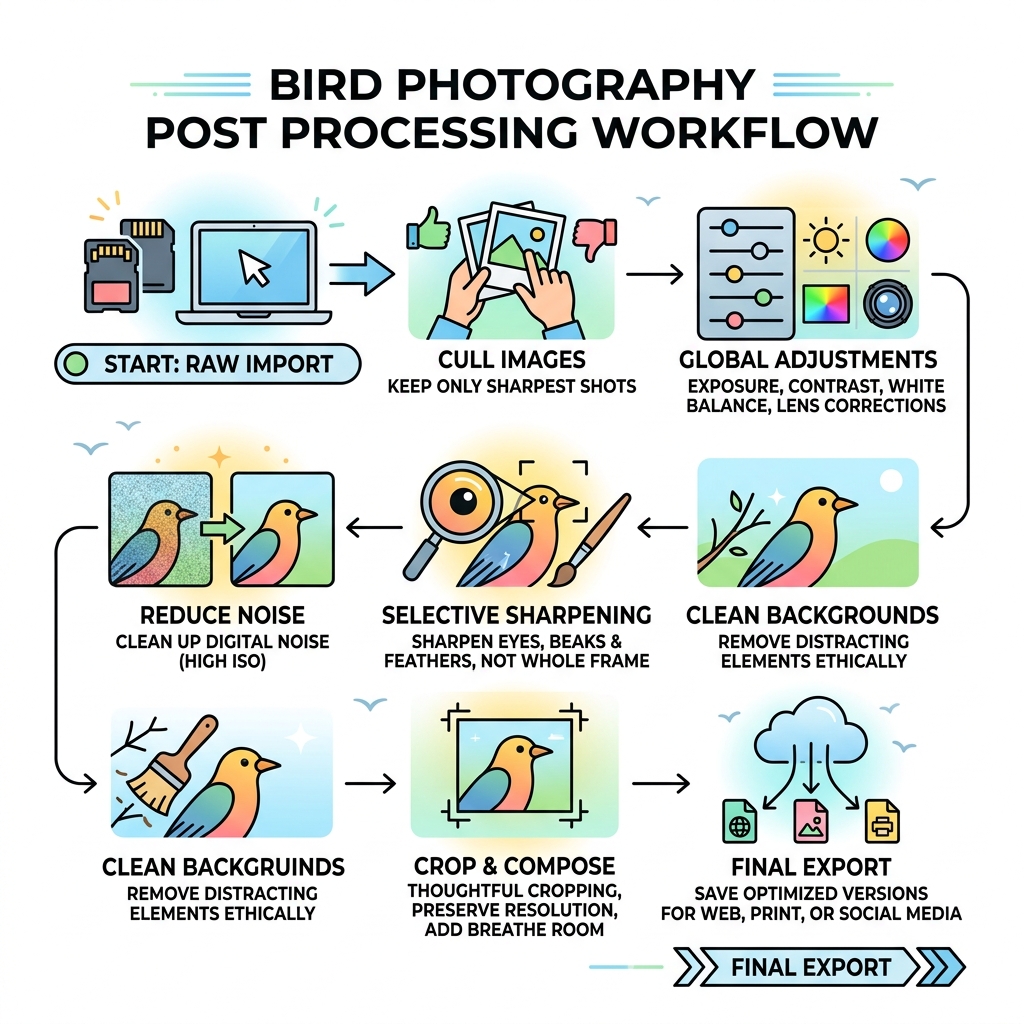
The Essential Bird Photography Post Processing Workflow
When we talk about bird photography post processing, we aren’t talking about “fixing” a bad photo. We are talking about developing a digital negative. To do this effectively, we must start with the right foundation: the RAW format.
Why RAW is Non-Negotiable
Every professional-grade camera offers several format options, but for birding, RAW is king. Unlike JPEGs, which are processed and compressed by your camera’s internal computer, a RAW file contains the minimally processed data from the sensor. This gives us the “dynamic range” needed to recover details in dark feathers or bright white plumage that would otherwise be lost.
Our recommended workflow order follows a logical path to preserve image integrity:
- Ingestion and Backup: Getting files off the card and onto two separate drives.
- Culling: Identifying the winners.
- Global Adjustments: Setting the overall mood and exposure.
- Specialized Processing: Noise reduction and sharpening.
- Local Refinements: Masking specific areas like the eye.
- Final Cleanup and Crop: Removing distractions and perfecting composition.
- Export: Saving for the web or print.
Culling and Organizing Your Avian Library
One of the most sobering statistics in our hobby is the “keeper rate.” In high-frame-rate bird shoots, it is common for only 1–10 percent of images to survive technical culling at 100 percent magnification. If you come home with 2,000 images of a kingfisher dive, you might only import 100 to 200 “keepers.”
To manage this volume, we recommend using FastRawViewer or similar efficient photo culling software. These tools allow you to flip through RAW files instantly without waiting for a library to render.
Our Culling Strategy:
- Star Ratings: Use a 1-5 star system. 5 stars are portfolio-ready; 4 stars are for social media; 3 stars are “ID shots” (rare birds with poor quality).
- Folder Structure: Organize by
Year > Month > Location_Date. - Metadata: Add keywords for species and behavior immediately. It makes finding that “Osprey with fish” shot much easier three years from now.

Global Adjustments for Bird Photography Post Processing
Once your keepers are in Adobe Lightroom, start with global adjustments. These affect the entire image.
- White Balance: This is the first thing we check. On cloudy days, auto white balance often makes greens look too blue. Warming the image by roughly 2000 Kelvin can restore a natural sun-kissed look.
- The “+30 Rule”: A good rule of thumb is to avoid pushing global sliders (like Saturation or Contrast) beyond +30. Overdoing these leads to a “crunchy,” unnatural look.
- Lens Corrections: Always enable “Remove Chromatic Aberration” and “Enable Profile Corrections.” This fixes purple fringing on feather edges and corrects lens distortion.
- Lighting: Focus on correcting lighting in bird images by balancing highlights and shadows. If a bird is backlit, we gently lift the shadows to reveal the plumage without washing out the blacks.
Surgical Precision: Noise Reduction and Sharpening
This is where bird photography post processing gets technical. Birds have intricate textures that are easily destroyed by heavy-handed editing.
| Adjustment Type | Target Area | Goal |
|---|---|---|
| Global NR | Entire Image | Remove coarse grain from high ISO |
| Selective NR | Background | Create “creamy” bokeh without blurring feathers |
| Global Sharpening | Entire Image | Usually avoided or kept very low |
| Selective Sharpening | Eyes, Beak, Feathers | Bring out the “snap” in the subject |
Selective Sharpening for Eyes and Beaks
The eye is the soul of a bird photograph. If the eye isn’t sharp, the photo usually goes in the bin. We use sharpening bird images in post techniques that focus specifically on the face.
Using an adjustment brush or a Select Subject mask, we target the eye and beak. For the beak, an Unsharp Mask with an Amount of 500 and a tiny Radius of 0.15 can bring out incredible texture. For the eye, a subtle boost in Clarity (+15) and a tiny exposure lift on the catchlight makes the bird look alive.
When enhancing bird feathers in editing, use the Texture slider rather than Sharpening. Texture (in the 7–25 range) enhances the “micro-contrast” of the barbs without creating the ugly halos associated with over-sharpening.
Managing High-ISO Noise in Bird Photography Post Processing
Birds often live in dark forests or move so fast we need shutter speeds of 1/2000s or higher. This leads to high ISO settings (ISO 3200 or even 6400).
To improve clarity in bird shots taken at these settings, we turn to AI-powered tools. Topaz DeNoise AI is a favorite among pros because it can distinguish between “noise” and “feather detail.”
Pro Tip: Apply noise reduction before you do heavy sharpening. If you sharpen a noisy image, you are just making the noise more prominent. We often apply Topaz AI’s Sharpen Tool as a final step to recover any detail lost during the noise reduction phase.
Composition and Ethical Retouching
At Ciber Conexão, we believe that composition is just as important in the digital darkroom as it is in the field. Our crop-and-composition-editing-tips emphasize that you should always give your subject “room to fly.”
How Much Cropping is Too Much?
It is tempting to crop until the bird fills the frame, but this leads to significant resolution loss.
- The 10% Rule: If possible, crop only about 10% more than your final desired size. This gives you “wiggle room” for straightening the horizon without losing your subject’s toes.
- Pixel Density: For a high-quality print, you want to keep as many pixels as possible. If your image starts looking “mushy” or pixelated at 100% zoom, you have cropped too far.
- The Result: Aim for natural-looking-edits-for-bird-photos where the bird feels part of its environment rather than a floating head.
Ethical Cleanup and Background Decisions
Ethics are paramount in nature photography. According to Audubon guidelines, we should never add or remove significant elements that change the “truth” of the scene.
However, cleaning up a stray twig that is “growing” out of a bird’s head is generally accepted in artistic (non-journalistic) circles. We use photoshop-tips-for-bird-photos like the Healing Brush (J) or Clone Stamp (S) for these minor distractions.
If the background is busy, don’t just blur it into oblivion. Instead, try to removing distractions from bird photos by slightly lowering the contrast or saturation of the background. This makes the bird “pop” naturally without looking like a cutout.
Frequently Asked Questions about Bird Photo Editing
What is the best software for bird photography?
For most of us, Adobe Lightroom Classic is the “mother ship.” It handles the cataloging and global edits perfectly. However, we often supplement it with specialized tools.
- On1 Photo Raw 2021 is excellent for “Dynamic Contrast.”
- Affinity Photo or ACDSee Photo Studio are great non-subscription alternatives. If you are just starting, look for beginner-friendly-photo-editing-software that offers non-destructive editing.
How do I avoid halos and oversaturation?
Halos (bright lines around the edges of the bird) usually happen when you use the “Shadows” slider too aggressively or over-sharpen. To avoid this, use color-grading-for-urban-bird-photography techniques that rely on the Vibrance slider instead of Saturation. Vibrance is “smarter”—it boosts the less-saturated colors while leaving the already-bright colors alone, preventing that “nuclear” neon look.
What are the best export settings for social media?
Exporting is the final step in bird photography post processing.
- Web/Social Media: Use the sRGB color profile. Resize the long edge to 2048 pixels (for Facebook) or 1080 pixels (for Instagram). Set the resolution to 72 dpi.
- Print: Use Adobe RGB or ProPhoto RGB profiles. Keep the full resolution and set the ppi to 300. If you are editing-pigeon-photos-on-mobile, ensure your app doesn’t compress the file too heavily upon saving.
Conclusion
Mastering bird photography post processing is a journey of subtlety. As Hugo Andrade often says at Ciber Conexão, the goal is to reveal the beauty that was already there, not to manufacture a scene that never existed. By following a structured workflow—from the initial cull to the final surgical sharpening of the eye—you can transform your raw captures into professional-grade art.
Always remember to edit non-destructively, keep your backups updated, and most importantly, keep the integrity of the bird at the center of your work.
Ready to take your skills further? Explore our category/photo-editing/ section or Explore more photography tips to perfect your craft. Happy editing!
