
Why a Mobile Photography Tips and Tricks PDF Can Transform Your Photos
If you’re looking for a mobile photography tips and tricks pdf, here’s what you need to know right away:
Top mobile photography tips at a glance:
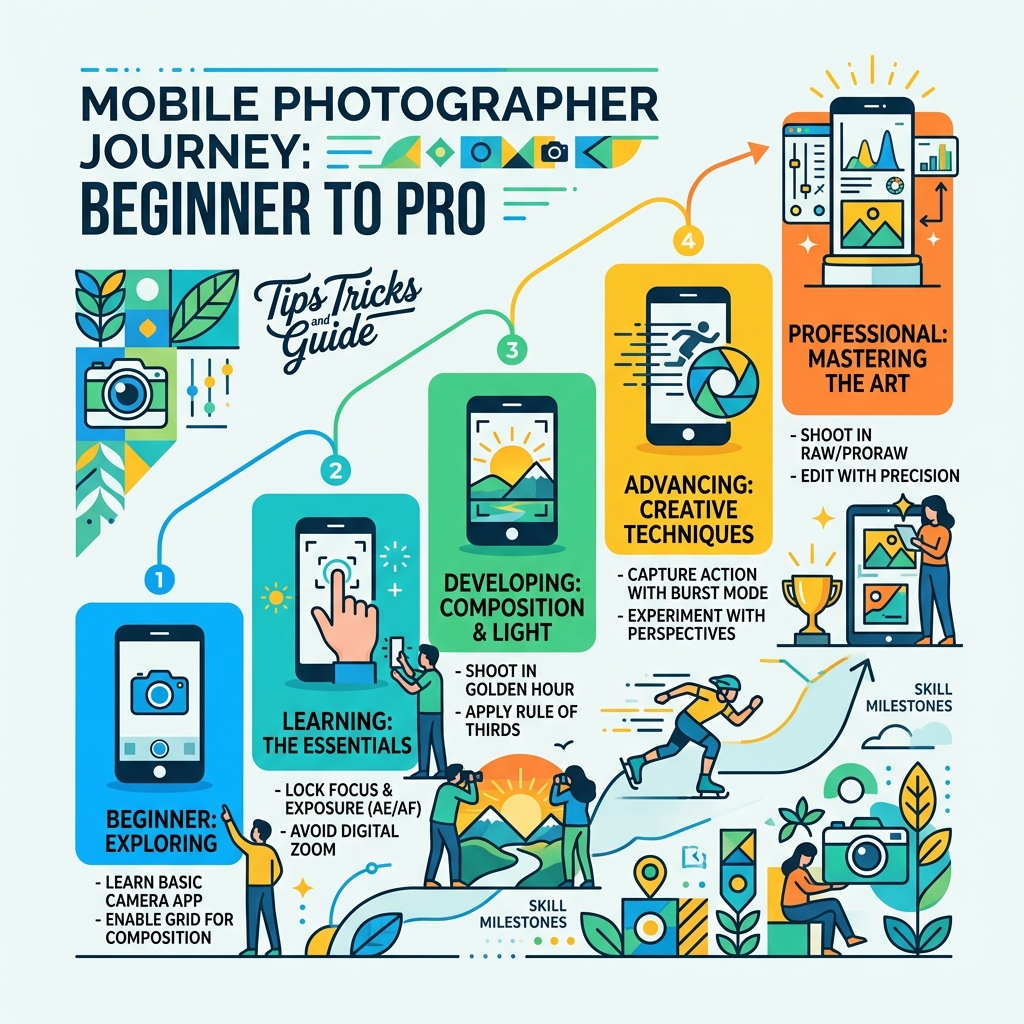
- Enable the grid – Go to Settings > Camera > Grid to use the Rule of Thirds
- Tap and hold to lock focus and exposure (AE/AF Lock) before shooting
- Shoot during golden hour – the hour after sunrise or before sunset for soft, warm light
- Avoid digital zoom – move closer to your subject instead
- Use Burst Mode – hold the shutter to capture 10 frames per second for action shots
- Edit with restraint – use Snapseed’s Tune Image and Selective tools for subtle enhancements
- Shoot in HEIF or ProRAW for better quality and editing flexibility
More than 92% of all photos today are taken on smartphones. That’s not a surprise – your phone is always in your pocket, always ready.
But here’s the thing: most people never move beyond pointing and tapping.
The legendary photographer Henri Cartier-Bresson once said, “Your first 10,000 photographs are your worst.” In the film era, reaching that number took decades. With a smartphone, you can get there in a fraction of the time – if you know what you’re doing.
The gap between a snapshot and a stunning photo isn’t expensive gear. It’s understanding a handful of simple techniques – composition, light, exposure, and editing. A good reference guide puts those techniques at your fingertips, even without Wi-Fi.
That’s exactly what this guide is for.
Essential Camera Settings for High-Quality Mobile Photography
Before we dive into the artistic side of things, we need to ensure your “digital darkroom” is set up correctly. Most of us pull our phones out and start snapping without ever touching the settings menu. That is a mistake! Your phone is a powerful computer, and like any computer, it performs better when you customize it.
Optimizing Your Device for Success
First things first: clean your lens. It sounds silly, but your phone lives in your pocket or purse, collecting lint and fingerprint oils. A quick wipe with a microfiber cloth (or even a soft t-shirt) can instantly remove the “haze” from your photos.
Next, let’s talk about the features you should enable right now:
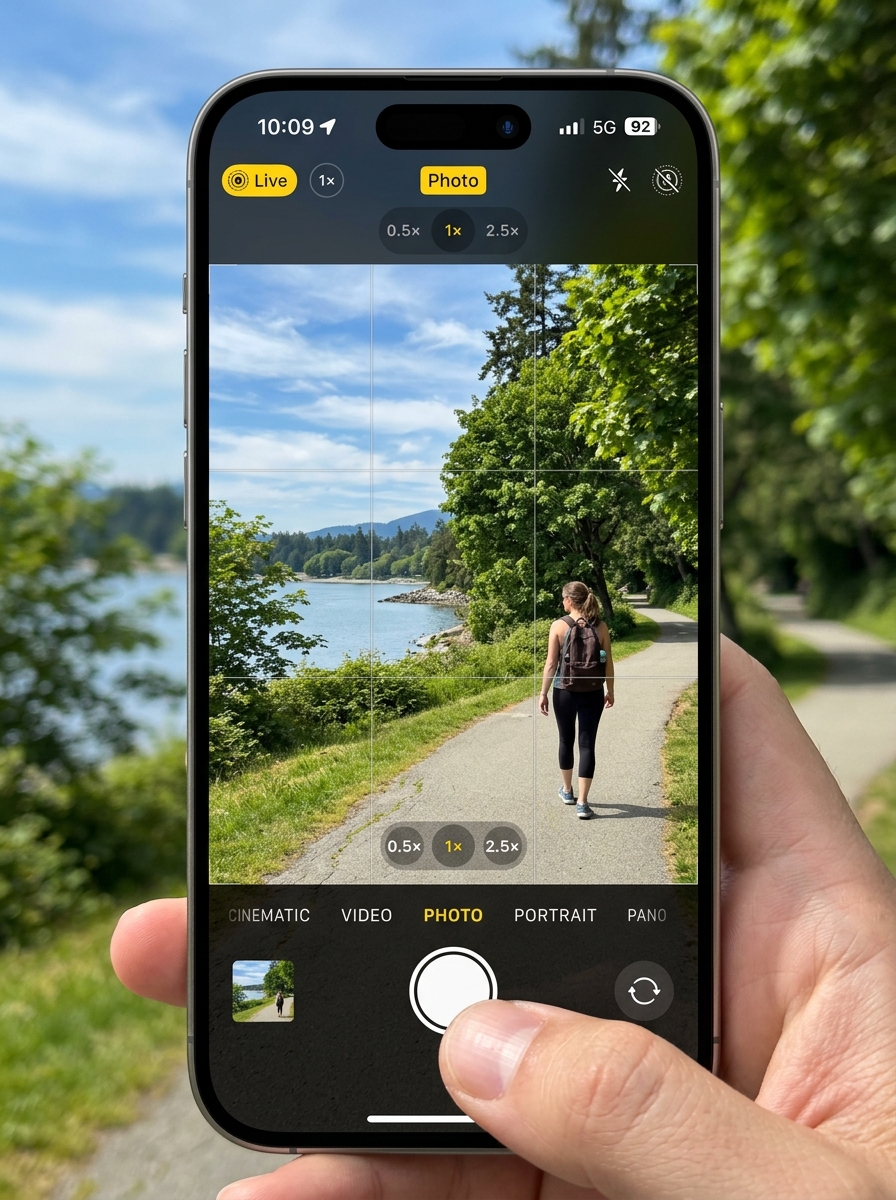
- Grid Lines: Go to your settings and turn on the 3×3 grid. This is the foundation of the Rule of Thirds, helping you place subjects off-center for a more balanced, professional look.
- AE/AF Lock: When you’re in the camera app, don’t just tap once. Tap and hold the screen on your subject. You’ll see a yellow box pulse and the words “AE/AF Lock” appear. This locks your focus and exposure so the camera doesn’t “hunt” if something moves in the background.
- Preserve Settings: Tired of your phone resetting to “Photo” mode every time you close the app? In your camera settings, you can find smartphone-settings-for-stunning-birding-shots/ options that allow you to keep your last used mode, such as Portrait or Night Mode, active.
- Burst Mode: For anything moving—kids, pets, or birds—use Burst Mode. On most modern iPhones, you slide the shutter button to the left (or hold the volume up button). It captures 10 frames per second, ensuring you catch the “decisive moment.” We’ve found this essential for smartphone-settings-for-stunning-birding-shots-2/ where subjects never sit still.
- Smart HDR and Night Mode: Ensure these are set to “Auto.” HDR (High Dynamic Range) helps when you have a very bright sky and a dark foreground, blending multiple exposures into one.
Why You Need a Mobile Photography Tips and Tricks PDF
We often get asked why a downloadable guide is better than just browsing a blog. The answer is simple: accessibility and reinforcement.
When you are out in the field—perhaps hiking a trail with no cell service or traveling in a foreign country—having a mobile photography tips and tricks pdf saved to your device means you have a technical cheat sheet ready at a moment’s notice. It serves as a visual reminder of the “rules” we’re about to discuss, helping you move from “accidental” good shots to “intentional” masterpieces.
Mastering the Exposure Triangle and Lighting
In professional photography, we talk about the Exposure Triangle: ISO, Shutter Speed, and Aperture. While smartphones often automate these, understanding them helps you take control when the “Auto” mode fails.
| Format | File Size | Quality | Best Use Case |
|---|---|---|---|
| JPEG | Small | Standard | Social media, quick sharing |
| HEIF | Very Small | High | Saving storage space |
| ProRAW | Large (4x JPEG) | Maximum | Professional editing, high detail |
Understanding Light Quality and Direction
Light is the “paint” of photography. Without good light, even the best composition falls flat. We always recommend “chasing the light.”
- Golden Hour: This is the hour just after sunrise and the hour before sunset. The sun is low, creating long shadows and a warm, “golden” glow that is incredibly flattering for portraits and landscapes.
- Blue Hour: The short period just before sunrise or after sunset when the sky turns a deep, moody blue. It’s perfect for cityscapes.
- Side Lighting: Position your subject so the light hits them from a 45-degree angle. This creates depth and texture. To learn more about posing and lighting, check out FREE READ (PDF) The Ultimate Guide to iPhone Photography: Learn How to Take Professional Shots and Selfies the Easy Way .
- Backlighting: Placing the sun behind your subject can create beautiful silhouettes or a “halo” effect. Just be sure to use exposure compensation (the little sun icon next to your focus box) to brighten the subject’s face if needed.
Manual Controls and Pro Modes
If you want to go deeper, many phones now offer a “Pro” or “Manual” mode. Here you can adjust:
- ISO: Think of these as “worker bees.” More bees (higher ISO) can see in the dark, but they get messy (grainy/noise). Keep ISO as low as possible (ISO 25-100) for clean shots.
- White Balance: This ensures your whites actually look white, not yellow or blue.
- RAW Capture: If you have an iPhone 12 Pro or newer, use Apple ProRAW. It stores more data, allowing us to recover details in the shadows and highlights during editing. For a deep dive into these technical parameters, see THE ULTIMATE GUIDE TO MOBILE PHOTOGRAPHY – PDF .
Advanced Composition Techniques for Mobile Photography Tips and Tricks PDF
Composition is simply how you arrange the elements in your frame. It’s the difference between a cluttered snapshot and a compelling story.
Capturing the Decisive Moment
The “decisive moment” is a concept popularized by Henri Cartier-Bresson. It’s that split second where all elements in the frame align perfectly. To capture it, you must be patient and observant.
- Rule of Thirds: Place your subject at the intersections of your grid lines.
- Leading Lines: Use roads, fences, or shorelines to lead the viewer’s eye into the photo.
- Negative Space: Don’t be afraid of “emptiness.” A small subject in a vast field can create a powerful sense of scale or solitude. You can find more on these basics in Phone Photography 101 – How To Take Good Pictures With Your Mobile Device .
- Rule of Odds: Images are more visually appealing when they feature an odd number of subjects (like three trees instead of two).
- Perspective Shifts: Stop shooting everything from eye level! Get low to the ground or find a high vantage point to make a common subject look extraordinary.
Downloading Your Mobile Photography Tips and Tricks PDF
When you download a mobile photography tips and tricks pdf, you aren’t just getting text; you’re getting visual templates. We recommend finding a guide that includes “Photo Challenges.” For example, spend one day only shooting “Leading Lines” and another day focusing solely on “Negative Space.” This deliberate practice is how you build the “photographer’s eye.”
Post-Processing and Editing Your Mobile Shots
Shooting the photo is only half the battle. Editing—or post-processing—is where you bring your creative vision to life. We always say: Editing should recreate the emotion you felt when you took the photo.
Professional Mobile Editing Workflows
We are big fans of Snapseed. It’s free, powerful, and offers “non-destructive” editing (meaning you can always undo a specific step without starting over).
- Tune Image: Start here to adjust brightness, contrast, and saturation.
- Selective Adjustments: This is a game-changer. It allows you to change the brightness or contrast of only one part of the photo (like brightening a face without overexposing the sky). We’ve used this extensively when editing-pigeon-photos-on-mobile/ to make the subject pop against a busy background.
- Healing Tool: Use this to remove unwanted objects, like a stray trash can or a photobomber.
- Crop and Composition: This is our specialty at Ciber Conexão. Sometimes a “good” photo becomes “great” just by cropping out distractions. Check out our list of apps-for-iphone-bird-photo-editing/ for more specialized tools.
- Moderation: The biggest mistake beginners make is over-editing. If your photo looks like a neon painting, back off the saturation! For those just starting, beginner-friendly-photo-editing-software/ can provide a gentler learning curve.
Creative Effects and Final Touches
Once you’ve mastered the basics, play with creative effects:
- Double Exposure: Blend two photos together for an artistic, dreamlike look.
- Black and White: Removing color forces the viewer to focus on light, shadow, and texture.
- Grain: Adding a little digital grain can give your mobile photos a timeless, film-like quality.
Frequently Asked Questions about Mobile Photography
How do I stop my mobile photos from looking blurry?
Blurry photos usually happen for two reasons: dirty lenses or camera shake. First, wipe that lens! Second, hold your phone with both hands and tuck your elbows into your ribs to create a “human tripod.” If you’re in low light, the shutter stays open longer, so even a tiny movement will cause blur. Use a stable surface or a small tripod for sharp night shots.
What is the best time of day for outdoor mobile photography?
Without a doubt, the Golden Hour. The light is soft and diffused, which prevents the “blown-out” highlights and harsh shadows you get at noon. If you must shoot midday, look for “open shade” (like under a tree or the shadow of a building) to keep the light even on your subject’s face.
Can I achieve a shallow depth of field without Portrait Mode?
Yes! While Portrait Mode uses software to blur the background, you can do it “optically” by getting very close to your subject (Macro) and ensuring there is plenty of distance between the subject and the background. The closer you are to the subject and the further they are from the wall behind them, the more “bokeh” (blur) you will get.
Conclusion
Mastering mobile photography is a journey of 10,000 steps, but it starts with the phone already in your hand. By understanding your settings, mastering light, and applying classic composition rules, you can produce images that rival professional DSLRs.
At Ciber Conexão, we believe that everyone has a creative spark. Our expert, Hugo Andrade, focuses on the practical side of editing—teaching you how to use crop and composition to turn your raw captures into polished art.
Don’t stop here! Keep practicing, keep “chasing the light,” and don’t be afraid to break the rules once you’ve learned them. For more deep dives into specific techniques, check out our More photography tips and tutorials page. Happy snapping!
