
Why Getting Your Instagram Crop Right Changes Everything
The best instagram crop tips come down to one core idea: the right crop puts more of your photo on screen, keeps the algorithm happy, and stops people from scrolling past your work.
Here is a quick reference to get you started:
Best Instagram Crops at a Glance (2025)
| Post Type | Aspect Ratio | Pixel Size | Best For |
|---|---|---|---|
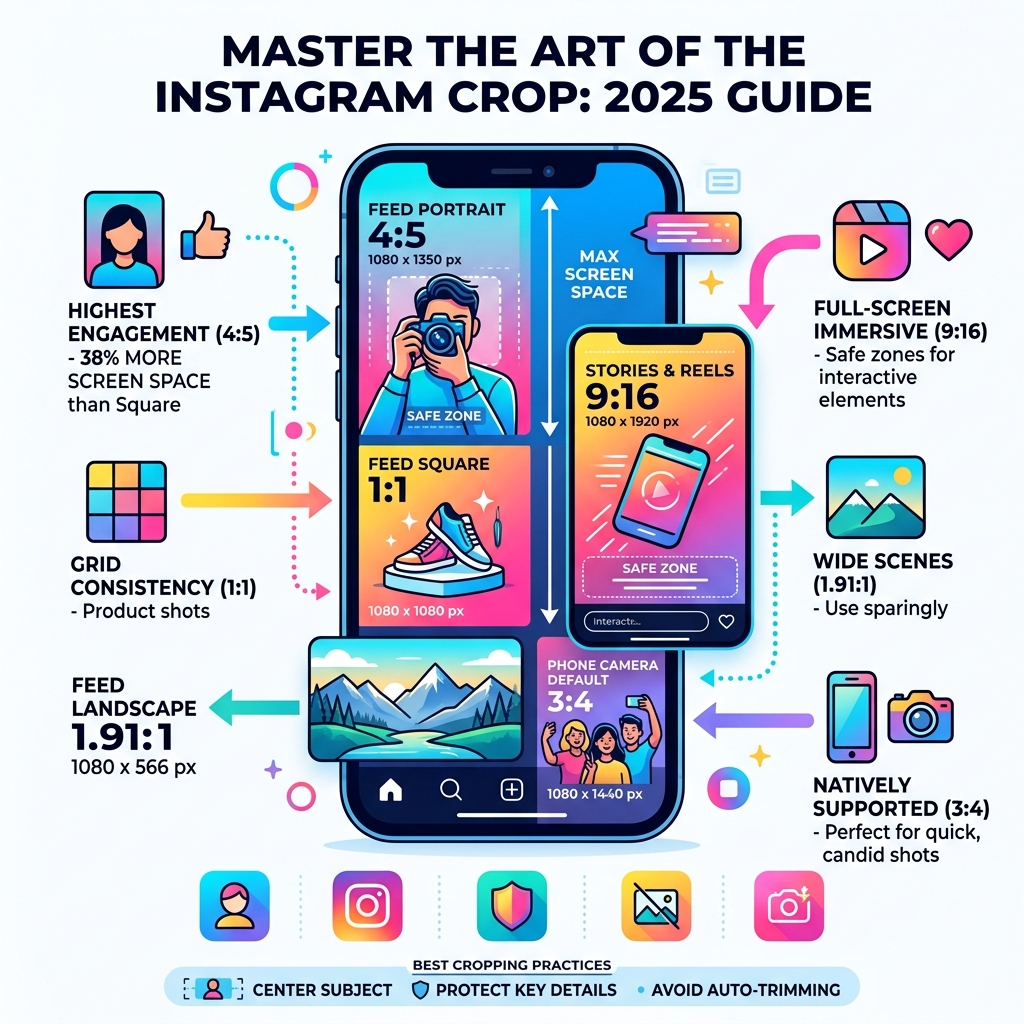
| Feed Portrait | 4:5 | 1080 x 1350px | Max screen space, highest engagement |
| Feed Square | 1:1 | 1080 x 1080px | Grid consistency, product shots |
| Feed Landscape | 1.91:1 | 1080 x 566px | Wide scenes (use sparingly) |
| Stories & Reels | 9:16 | 1080 x 1920px | Full-screen immersive content |
| Phone Camera Default | 3:4 | 1080 x 1440px | Now natively supported (May 2025) |
Portrait images at 4:5 take up 38% more screen space than a square post. That is not a small difference — it is the gap between a scroll-past and a stop-and-look.
Instagram is a mobile-first platform. Most people scroll fast, on a phone, with one thumb. The photo that fills more of that screen simply wins.
But knowing the right dimensions is only part of the picture. How you crop — where you place your subject, what you cut out, how you protect key details from being auto-trimmed — is what separates a polished post from one that looks slightly off.
This guide covers every format, every common mistake, and the simple techniques that will make your photos look intentional and sharp every time you post.
Why 4:5 is the Best Instagram Crop Tips Strategy for Engagement
If we had to pick just one rule to live by, it would be this: Go vertical. While the classic 1:1 square is what made Instagram famous, the 4:5 portrait ratio is the reigning champion of engagement.
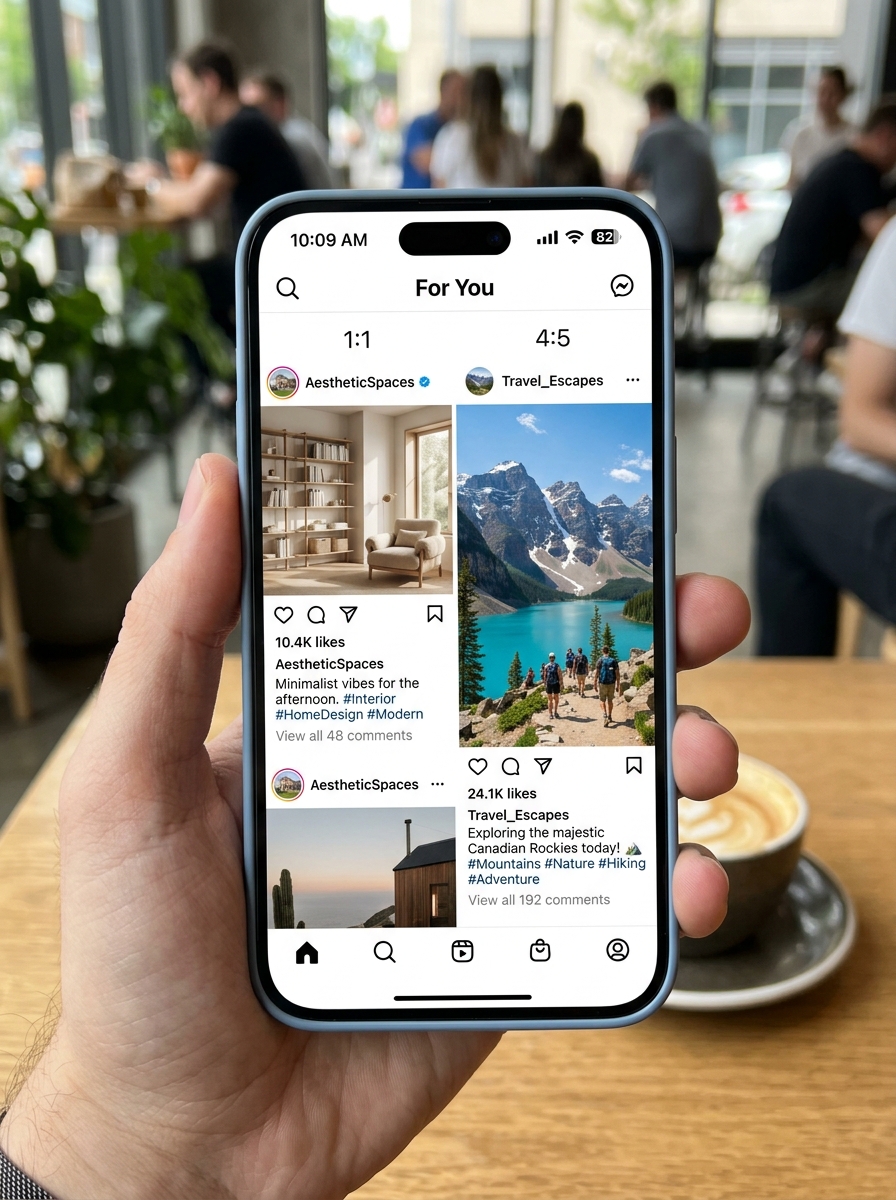
Why? It’s all about digital real estate. When someone is scrolling through their feed on a smartphone, a 4:5 photo occupies significantly more physical space on their screen than a square or landscape shot. Specifically, you get 38% more visibility. This extra height forces the user to scroll for a fraction of a second longer to get past your post, giving your content a better chance to catch their eye and earn a “like.”
Using the 4:5 ratio (1080 x 1350 pixels) is one of the best instagram crop tips for anyone looking to grow their reach. Landscape crops (1.91:1), while beautiful for sweeping vistas, often feel small and “distant” on a mobile screen. Unless the horizontal width is absolutely essential to the story of the photo, we recommend cropping it tighter to fit the portrait format.
When you master The Ultimate Guide to Better Photo Composition, you learn that how you frame your subject within that 4:5 window matters just as much as the ratio itself. If you find your photo is being cut off in ways you don’t like, you can always check the Crop your photo on Instagram | Instagram Help Center for the most basic native adjustments, but pre-cropping before you upload is always the safer bet.
Technical Specs: Optimal Ratios for Posts, Stories, and Reels
In 2025, Instagram is more flexible than ever, but that flexibility comes with a side of confusion. To keep your feed looking sharp, you need to match your pixels to their purpose.
| Format | Aspect Ratio | Ideal Resolution |
|---|---|---|
| Square Post | 1:1 | 1080 x 1080 px |
| Portrait Post | 4:5 | 1080 x 1350 px |
| Landscape Post | 1.91:1 | 1080 x 608 px |
| Stories/Reels | 9:16 | 1080 x 1920 px |
| New Standard | 3:4 | 1080 x 1440 px |
A major update in May 2025 finally brought native support for the 3:4 aspect ratio. This is huge because most smartphones shoot in 3:4 by default. Before this, you often had to choose between a slight crop or adding borders. Now, you can often post your “full” phone photo directly. However, for maximum impact, 4:5 remains the gold standard for filling the feed.
When deciding between these, consider your subject. Are you shooting a tall building or a single person? Go vertical. Are you capturing a wide bird-watching horizon? You might need to weigh Vertical or Horizontal Framing Tips for Bird Photography to decide if the landscape view is worth the loss in screen space.
Mastering the Best Instagram Crop Tips for Stories and Reels
Stories and Reels are immersive, full-screen experiences. They demand a 9:16 ratio (1080 x 1920 px). If you upload something smaller, Instagram will zoom in (making it blurry) or add a blurry background (making it look messy).
The secret to a pro-level Story is respecting the “Safe Zones.” Instagram places UI elements like your profile icon at the top and the “Send Message” bar at the bottom. We suggest leaving a margin of about 250 pixels at both the top and bottom. If you place text or your subject’s face in these areas, they will be covered up.
For those of us editing on the go, utilizing specialized Apps for iPhone Bird Photo Editing can help you visualize these crops before you ever hit the “Share” button.
Best Instagram Crop Tips for Seamless Carousels
Carousels are engagement gold—they can earn 12% more interaction than single posts. But they have a “hidden” rule: The first photo sets the tone.
If your first photo is a 1:1 square, Instagram will force every subsequent photo in that carousel to be a 1:1 square. If your second photo was meant to be a 4:5 portrait, the top and bottom will be chopped off automatically. To avoid this, ensure every image in your set is cropped to the exact same aspect ratio before uploading.
If you are Editing Pigeon Photos on Mobile for a carousel, use a consistent crop preset to ensure the transition from one slide to the next is smooth and professional.
Pro Composition Techniques to Elevate Your Crops
Cropping isn’t just about fitting a box; it’s about directing the viewer’s eye. Even a perfectly sized 4:5 photo can fail if the composition is cluttered.
One of the best instagram crop tips we can offer is to use the Rule of Thirds. When you crop, try to place the most interesting part of your photo (like a person’s eyes or a bird’s beak) along the grid lines or at their intersections. This creates a sense of balance that feels natural to the human eye.
Don’t forget about Headroom. If you crop too close to the top of someone’s head, the photo feels cramped. Leave some “breathing room” or negative space around your subject to let the image exhale. Conversely, Leading Lines can be used to pull the viewer into the center of the frame, which is especially important for the Instagram Explore page where thumbnails are small.
For a deeper dive into these artistic choices, check out our Crop and Composition Editing Tips. And remember, if you have a photo that just won’t fit the 4:5 box without losing something vital, check out the latest advice on How to Post the Full Photo on Instagram Without Cropping (2026 Update).
Avoiding the Dreaded Auto-Crop and Quality Loss
Nothing ruins a great photo like the “Instagram Blur.” This usually happens when the app’s compression algorithm gets a hold of an image that is either too small or the wrong shape.
To maintain maximum sharpness:
- Always use 1080px as your width. Instagram scales everything to 1080px wide. If you upload a 2000px wide photo, Instagram will shrink it, often losing detail. If you upload a 500px wide photo, it will stretch it, making it pixelated.
- The 14% Safety Margin. When shooting, try to leave a 14% margin around the edges of your main subject. This gives you “room to move” during the final crop and protects you if Instagram’s auto-zoom kicks in on certain devices.
- Export as a High-Quality JPG. Aim for about 90% quality. This keeps the file size manageable (under 4GB for video!) while retaining the crispness you worked hard for.
Learning how to Turn Pixels into Perfection and Get Better Quality Image Online is a vital skill for any serious creator.
Advanced Tools: Beyond the Native Instagram Editor
While the “Edit” button inside Instagram is fine for quick fixes, it’s quite limited. If you want precision, you need to step outside the app.
Professional tools like Lightroom and Photoshop offer “Content-Aware Fill” or “Magic Fill.” This is a game-changer. Imagine you have a beautiful 3:4 photo, but you want it to be a 4:5 portrait to get that extra screen space. Instead of cropping in and losing the bottom of the photo, AI tools can actually “grow” the background upwards, creating a perfect 4:5 crop without losing any of your original image.
For beginners, there is plenty of Beginner-Friendly Photo Editing Software that makes this process as easy as clicking a button. If you’re a niche photographer, you might even look into Photoshop Tips for Bird Photos to see how pros handle complex backgrounds during a crop.
Frequently Asked Questions about Instagram Cropping
How do I post a full-size photo without cropping?
The easiest way is to use the native “expand” button (the two arrows) in the bottom-left corner of the Instagram upload screen. However, this only works if your photo is within the 1.91:1 to 4:5 range. If your photo is a very long panorama or a very tall vertical, you will need to use an app like Canva or Snapseed to add white or colored borders to the sides, “tricking” Instagram into seeing a supported ratio.
Why does Instagram make my photos look blurry after cropping?
This is almost always due to upscaling. If you take a small portion of a photo and crop it heavily, you are reducing the total number of pixels. When Instagram tries to display that tiny crop at 1080px wide, it has to “make up” pixels, resulting in blur. Always start with the highest resolution possible.
Does the 3:4 grid preview affect my 4:5 posts?
Yes! This is a common trap. While your post appears as a 4:5 portrait in the feed, it is cropped to a 1:1 square (or sometimes a 3:4 rectangle depending on the update) on your profile grid. If you place a person’s head at the very top of a 4:5 crop, they might look “decapitated” on your profile page. Always try to keep the most important action toward the center of the frame.
Conclusion
Mastering the best instagram crop tips is about finding the sweet spot between technical requirements and artistic vision. By prioritizing the 4:5 ratio, respecting safe zones in Stories, and using external tools for precision, you ensure your photos look exactly how you intended.
At Ciber Conexão, Hugo Andrade and our team are dedicated to helping you bridge the gap between “taking a picture” and “creating a masterpiece.” Whether you are just starting out or looking to refine your professional workflow, the right crop is the final, essential step in your creative journey.
Ready to dive deeper into visual storytelling? Explore our Photo Editing Category for more expert advice on composition, lighting, and digital perfection. Happy posting!
