
Why Every Photographer Needs a Lightroom Photo Editing Guide
A solid lightroom photo editing guide can be the difference between photos that look “fine” and photos that genuinely impress people.
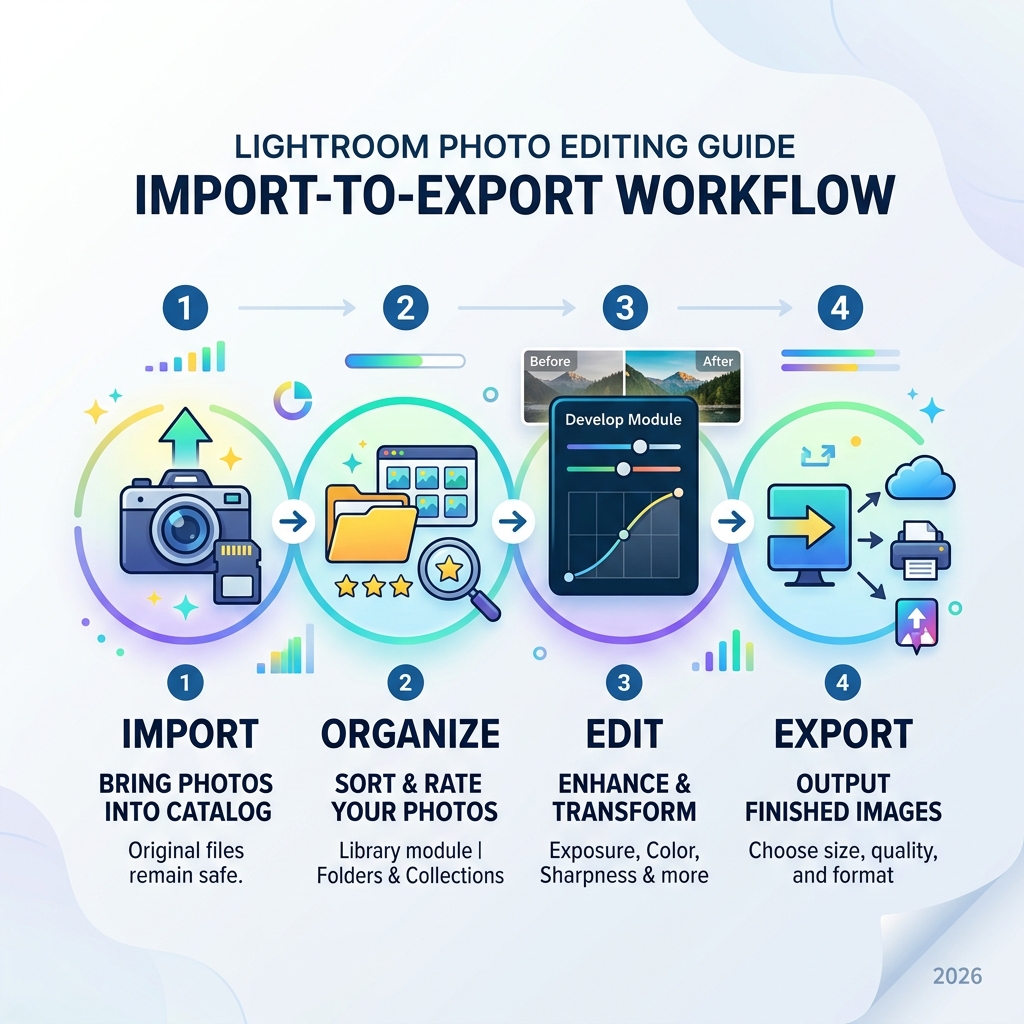
Here’s a quick overview of what Lightroom does and how to use it:
- Import your photos into a Catalog (Lightroom stores your edits separately from the original files — nothing gets damaged)
- Organize using the Library module with folders, collections, and star ratings
- Edit in the Develop module — adjust exposure, color, sharpness, and more
- Export your finished photos at the right size and quality for web or print
That’s the whole loop. Import → Organize → Edit → Export.
Lightroom has been the go-to photo editing tool since 2007. Today, it’s used by millions of photographers — from beginners shooting on their phones to professionals processing hundreds of wedding images.
But here’s the problem most beginners run into: Lightroom looks overwhelming at first.
Sliders everywhere. Multiple modules. Two different versions of the software. It’s easy to open it for the first time and feel completely lost.
The good news? Experienced Lightroom users spend roughly 98% of their time in just two places — the Library and Develop modules. Everything else is optional. And basic edits can be done in as little as one minute once you know what you’re doing.
This guide walks you through every key tool in plain language — no photography degree required.
Lightroom CC vs. Classic: Choosing Your Path
Before we dive into the sliders, we need to address the elephant in the room: there are two versions of Lightroom. Since 2007, Adobe has evolved the software, and now we have Lightroom Classic and Lightroom (formerly CC).
Lightroom Classic is the “OG” version. It is desktop-based and uses a local file management system. This is the powerhouse for professionals who have thousands of photos stored on external hard drives. It offers the most granular control over your catalog and printing.
Lightroom CC is the modern, cloud-centric version. It looks cleaner and syncs your photos across your desktop, tablet, and phone. If you want to start an edit on your laptop and finish it on your iPhone while sitting on a bus, this is for you.
| Feature | Lightroom Classic | Lightroom CC |
|---|---|---|
| Storage | Local (Hard Drives) | Cloud-based |
| Interface | Complex / Feature-rich | Streamlined / Modern |
| Mobile Sync | Limited (Smart Previews) | Fully Integrated |
| Best For | High-volume Pros | Mobile Creators / Beginners |
For many, Lightroom CC is the beginner friendly photo editing software of choice because it removes the “scary” technical hurdles of file paths. However, both use the same powerful Adobe Camera Raw engine. Whether you choose the cloud or the desktop, your image quality remains top-tier.
The Lightroom Photo Editing Guide: Mastering the Interface
The first time you open Lightroom, you might feel like you’ve walked into a “wasteland” of grey panels. Don’t panic. Everything starts with the Import dialog.

When we import photos, we aren’t “moving” them into Lightroom. We are telling Lightroom where they live on our computer. The software then creates a Catalog—think of this as a recipe book. Your original photo is the raw ingredient, and your edits are the instructions. The ingredient never changes; only the final “dish” (the export) looks different.
Organizing and Culling
Once imported, you’ll be in the Library Module. This is where we play “Judge and Jury.”
- Rating: Use star ratings (1-5) or flags (P for Pick, X for Reject).
- Collections: Think of these like Spotify playlists for your photos. You can have one photo in multiple collections without duplicating the file.
- Culling: Be ruthless! Experienced editors suggest delivering only 30-50 high-quality images from a 200-frame session.
Basic Adjustments in Your Lightroom Photo Editing Guide
Now, the fun part: the Develop Module. This is where the magic happens. We always recommend working from the top of the “Basic” panel downward.
- Exposure: This is your primary brightness control. A little goes a long way—most edits stay within the -1.5 to +1.5 range.
- Highlights and Shadows: These are your recovery tools. If the sky is too bright, pull Highlights to the left. If the bird in the trees is too dark, pull Shadows to the right.
- Whites and Blacks: These set the “end points” of your histogram. A pro tip is to hold the Alt/Option key while sliding these; the screen will turn black or white, showing you exactly when you start “clipping” (losing detail).
- Contrast: This stretches the gap between your darks and lights.
While you’re here, don’t forget that how you frame the shot matters just as much as the light. Check out our crop and composition editing tips to ensure your subject is perfectly placed before you get too deep into color work.
Color Correction: A Lightroom Photo Editing Guide Essential
Color is emotional. It can make a photo feel “warm” and inviting or “cool” and clinical.
- White Balance (WB): Use the Eyedropper tool on something neutral (like a grey rock or a white shirt) to fix weird lighting instantly.
- Vibrance vs. Saturation: Saturation is a blunt instrument—it boosts every color equally. Vibrance is smarter; it targets muted colors while protecting skin tones so people don’t end up looking like Oompa Loompas.
- HSL Sliders (Hue, Saturation, Luminance): This is the “surgical” color tool. Want to turn a distracting yellow-green leaf into a deep forest green? Use the Hue slider. Want to make a blue sky pop without affecting the rest of the photo? Use the Saturation slider under the Blue tab.
For those focusing on wildlife, learning how to enhance colors in bird photography can make those feathers truly shimmer against a natural background.
Advanced Retouching and Local Adjustments
Sometimes, the whole photo looks great, but one specific spot needs help. This is where Local Adjustments come in.
Lightroom’s newer AI features are genuine game-changers. With one click, you can Select Subject or Select Sky. What used to take 20 minutes of careful brushing now takes 20 seconds.
- Adjustment Brush: Paint exactly where you want a change (like brightening just the eyes in a portrait).
- Radial Filter: Create a “spotlight” effect around your subject.
- Graduated Filter: Perfect for darkening a sky without affecting the ground.
If you are working with Lightroom Classic, you can dive even deeper into how to retouch photos in Lightroom Classic to master skin smoothing and fine detail work. This is also the stage where you should be removing distractions from bird photos, such as stray twigs or power lines, using the Spot Removal tool.
Correcting Lens Flaws and Perspective
Every lens has “personality flaws.” Some make straight lines look curved (distortion), and others create weird purple edges on bright objects (chromatic aberration).
In the Lens Corrections panel, simply check “Enable Profile Corrections.” Lightroom reads your photo’s metadata and automatically fixes these issues.
For architectural shots or horizons that feel “off,” the Transform panel is your best friend. Interestingly, the Auto Transform option works perfectly about 80% of the time, straightening your buildings and leveling your horizons with a single click. This helps in creating natural looking edits for bird photos where a tilted horizon can make the entire scene feel unstable.
Adding Style with Effects and Detail
The Effects and Detail panels are the “finishing salt” of your editing meal.
- Texture vs. Clarity: Texture is gentle and great for skin or feathers. Clarity is “gritty” and adds punch to landscapes or urban scenes.
- Dehaze: This is like magic for foggy or hazy shots. It cuts through the atmosphere to reveal hidden detail.
- Vignette: A subtle dark border helps pull the viewer’s eye toward the center of the frame.
- Sharpening: Every RAW file needs a little sharpening. A common mistake is over-sharpening, which creates “halos.” Use the Masking slider (hold Alt/Option) to ensure you only sharpen the edges and not the flat areas like the sky.
- Noise Reduction: If you shot at a high ISO and the photo looks “grainy,” use the Luminance slider to smooth it out. For birders, sharpening bird images in post requires a delicate balance to keep feathers looking real rather than plastic.
Workflow Efficiency: Presets and Exporting
Editing one photo is fun. Editing 500 is a chore. To speed things up, we use Presets.
A preset is just a saved group of settings. You can find lightroom presets for urban birds or create your own by clicking the “+” in the Presets panel after you’ve made an edit you love. You can then “Sync” these settings across dozens of photos at once.
The Great Exit: Exporting
Your edits aren’t “real” until you export. Since Lightroom is non-destructive, the original file stays on your drive, and a new JPEG is created during export.
- For Web/Social Media: Set the resolution to 72 PPI and the long edge to 2048 pixels. This is the “sweet spot” for Facebook and Instagram.
- For Print: Set the resolution to 300 PPI and keep the quality at 100%.
- Sharpening: Always select “Output Sharpening” for “Screen” or “Matte/Glossy Paper” depending on where the photo is going.
If you need a step-by-step on using presets in the cloud version, Adobe’s guide on how to edit photos using presets in Lightroom desktop is an excellent resource.
Frequently Asked Questions about Lightroom
What is the difference between Vibrance and Saturation?
Saturation is a global boost to all color intensity. Vibrance is “smart” saturation—it ignores colors that are already intense and focuses on the muted ones. It also specifically avoids boosting orange/pink tones to keep human skin looking natural.
How do I create my own Lightroom presets?
Once you have edited a photo to perfection, go to the Presets panel on the left. Click the + icon and select “Create Preset.” Give it a name, choose which settings you want to save (we usually uncheck “White Balance” and “Crop”), and hit Save. Now you can apply that exact look to any future photo with one click!
Why should I use a Catalog instead of just opening files?
The Catalog system is what makes Lightroom fast and safe. Because Lightroom only stores a “text file” of your edits, the software doesn’t have to load a massive 50MB RAW file every time you move a slider. It also means you can never accidentally “save over” your original photo. Your “negatives” are always safe in the digital darkroom.
Conclusion
Mastering Lightroom doesn’t happen overnight, but by following a consistent lightroom photo editing guide, you can turn a confusing pile of sliders into a powerful creative tool. Remember to start with the basics—exposure and white balance—before moving into the advanced AI masking and color grading tools.
At Ciber Conexão, we believe that photo editing should be an extension of your vision, not a source of frustration. Whether you’re trying to make bird feathers pop or straightening a city skyline, the key is to tinker and play. Adobe Lightroom has been around since 2007 for a reason: it works.
For more practical, expert advice from Hugo Andrade on improving your photography and post-processing skills, Master your skills at Ciber Conexão. Happy editing, and remember: there’s an “Undo” button for everything!
