
Why Basic Photo Editing in Photoshop Feels Hard (And How to Fix That)
Basic photo editing in Photoshop comes down to a few core steps that any beginner can learn and repeat on every photo.
Here’s a quick overview of the essential editing steps:
- Open and prepare your file – Import your image, ideally starting in Camera Raw for global adjustments
- Fix composition – Straighten and crop your photo using the Crop tool
- Correct lighting – Adjust exposure, shadows, and white balance using the Levels tool
- Enhance color – Boost Vibrance and Saturation for a natural, polished look
- Sharpen and reduce noise – Add clarity without making the image look over-processed
- Save your work – Export as JPEG for sharing, or PSD to preserve your layers
Cameras don’t capture the world the way our eyes see it. They distort light, flatten colors, and sometimes soften sharpness. That’s not a flaw in your photography – it’s just how cameras work. Editing is how you correct those distortions and make your photo look the way it felt in real life.
The problem? Photoshop can feel overwhelming. Open it for the first time and you’re staring at dozens of panels, menus, and tools with no clear starting point. It’s easy to click around randomly, apply too many adjustments, and end up with a worse photo than you started with.
The good news is that most great edits come from just a handful of tools – and once you know the order to use them, the whole process gets simple and repeatable.

The Foundation: Non-Destructive Editing and Layers
Before we move a single slider, we need to talk about the “Golden Rule” of Photoshop: non-destructive editing. In the early days of digital editing, if you changed a pixel, that change was permanent. If you over-brightened a photo and saved it, the original data was gone forever.
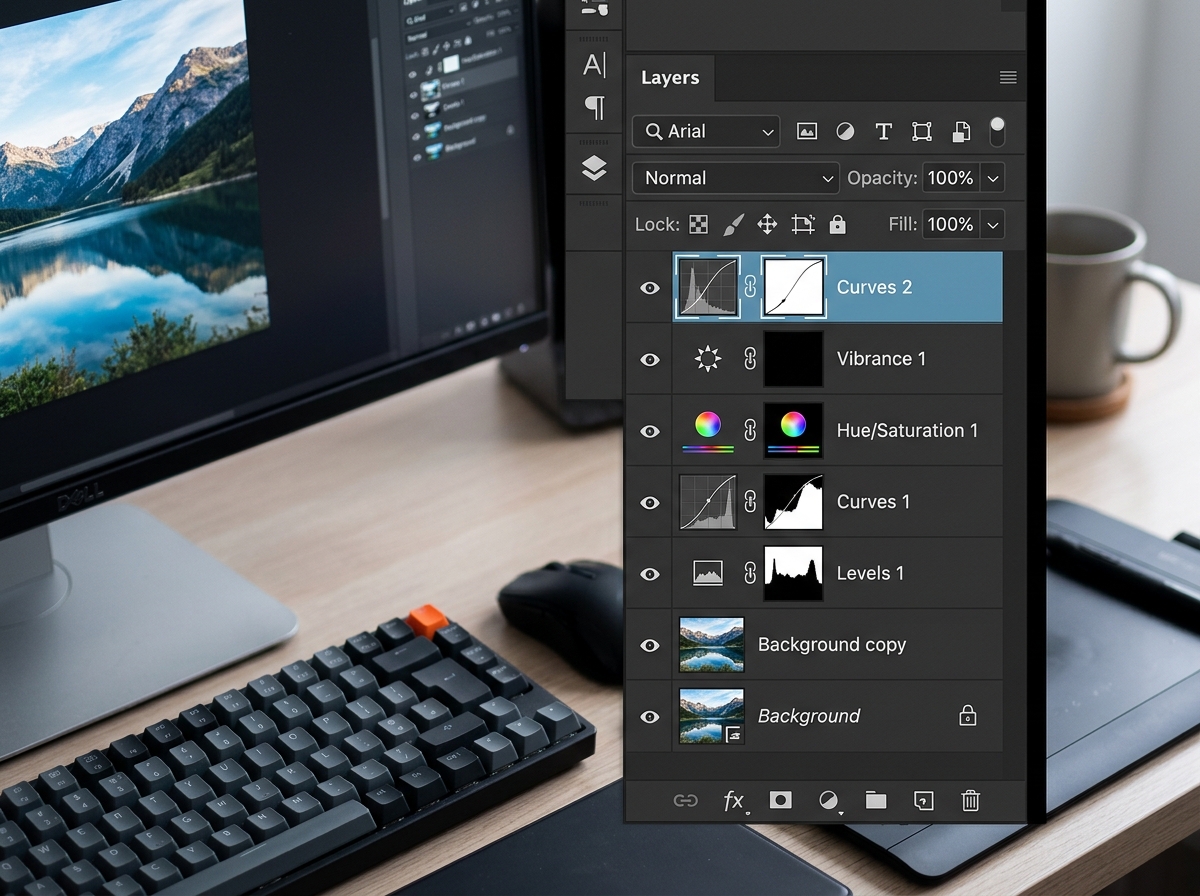
Today, we use layers to ensure we never actually “break” our original photo. Think of layers like sheets of clear acetate stacked on top of your original print. You can draw on the top sheet, change its color, or cut holes in it, but the original photo at the bottom remains untouched.
Why Use Adjustment Layers?
Instead of going to Image > Adjustments, which applies changes directly to your pixels, we use the Adjustments Panel. This creates a separate “Adjustment Layer.” If you decide ten minutes later that your photo is too blue, you don’t have to “Undo” everything you’ve done since; you simply double-click that specific layer and tweak the setting.
Duplicate Layers for Safety
A common pro tip we recommend at Ciber Conexão is to duplicate your background layer (Cmd+J on Mac, Ctrl+J on PC) before using tools like the Spot Healing Brush. This gives you a “safety net” layer to work on. Adobe provides a great guide on how to Edit images using these foundational techniques.
By mastering layers, you gain the flexibility to experiment without fear. This is what makes Photoshop one of the most beginner-friendly photo editing software options once you understand the interface.
A Step-by-Step Workflow for Basic Photo Editing in Photoshop
Having a systematic approach is the secret to not “losing your mind.” If you jump from sharpening to color to cropping and back to lighting, you’ll likely over-process the image. We suggest a “global-to-local” workflow: fix the big stuff first, then move to the details.
Every photo should tell a story. Before you start clicking, ask yourself: What is the subject? What is distracting me from that subject? By following a story-driven editing approach, you ensure your edits serve a purpose rather than just being “effects.” For those specializing in wildlife, our photoshop-tips-for-bird-photos can help you identify which details to highlight to make the subject pop.
Preparing Your File: Basic Photo Editing in Photoshop in Camera Raw
If you are shooting in RAW format (which we highly recommend!), Photoshop will automatically open the Adobe Camera Raw (ACR) window first. This is where the heavy lifting happens.
RAW files contain significantly more “bit-depth” than JPEGs. While a JPEG might have 256 levels of brightness, a RAW file can have thousands. This extra data allows you to recover details in blown-out skies or deep shadows that would be lost in a standard photo.
Key ACR steps:
- Lens Correction: Check the “Enable Profile Corrections” box. This fixes the natural distortion and “vignetting” (dark corners) caused by your physical camera lens.
- Global Exposure: Use the Exposure slider to get the overall brightness right. If you’re working with tricky lighting, check out our guide on adjusting-exposure-for-bird-photos.
- White Balance: Use the Temperature slider to remove unnatural yellow or blue tints.
Mastering Composition: Basic Photo Editing in Photoshop Tools
Once you click “Open” in Camera Raw, you’re in the main Photoshop interface. The first order of business is composition. A great photo can be ruined by a crooked horizon or a distracting trash can in the corner.
The Crop Tool (C): The Crop tool isn’t just for changing the size; it’s for re-framing the story. When you select the Crop tool, look for the “Straighten” icon in the top menu bar. You can draw a line along the horizon, and Photoshop will automatically rotate the image to make it level.
Composition Tips:
- Rule of Thirds: Use the grid overlay to place your subject at the intersections of the lines.
- Remove Distractions: If there’s a stray branch or a photobomber at the edge of the frame, crop them out! We have more crop-and-composition-editing-tips to help you master this.
- Clean Up: For smaller distractions, use the Spot Healing Brush to “paint” them away. This is essential for removing-distractions-from-bird-photos where twigs might overlap your subject.
Correcting Lighting, Exposure, and White Balance
Now we move to the most transformative part of basic photo editing in Photoshop: the Levels adjustment.
While Brightness/Contrast is okay for quick fixes, Levels gives you professional control. When you open a Levels adjustment layer, you’ll see a Histogram—a mountain-shaped graph representing the light in your photo. The left side is pure black, the right is pure white, and the middle is your “midtones.”
The Levels “Pop” Trick:
- The White Eye-Dropper: Select the bottom eye-dropper icon in the Levels panel and click on something in your photo that should be pure white (like a white cloud or a bird’s feather). This instantly fixes the white balance.
- Adjust the Sliders: Drag the black slider (left) toward the start of the “mountain” to deepen shadows. Drag the white slider (right) toward the start of the mountain to brighten highlights.
- Midtones: Move the middle gray slider to adjust the overall brightness without losing detail in the extremes.
Proper lighting is the difference between a flat, amateur shot and a professional image. For more specific help with challenging light, see our tutorials on correcting-lighting-in-bird-images and correcting-lighting-in-bird-images-2.
Enhancing Colors and Clarity Without Overdoing It
Once the lighting is set, it’s time to make the colors “sing.” Beginners often make the mistake of cranking the Saturation slider to +50. This usually results in “clipping,” where colors become so bright they lose all detail and look like neon plastic.
Vibrance vs. Saturation
We prefer using Vibrance. Vibrance is “smart” saturation—it boosts the duller colors in your photo while leaving the already-saturated colors (and skin tones) alone. This leads to natural-looking-edits-for-bird-photos that still feel vibrant. If you want to dive deeper into color theory, our guide on how to enhance-colors-in-bird-photography is a great resource.
Clarity and Sharpening
Finally, we need to address “softness.”
- Noise Reduction: If your photo was taken in low light, it might look “grainy.” Go to Filter > Noise > Reduce Noise. A little goes a long way—too much will make your photo look like a painting.
- High Pass Sharpening: Instead of using the “Sharpen” tool (which can add weird artifacts), try this: Duplicate your layer, go to Filter > Other > High Pass, set it to about 2.0 pixels, and change the layer blend mode to “Overlay.” This sharpens only the edges, making details like sharpening-bird-images-in-post much more effective.
Common Mistakes to Avoid for Beginners
Even with the best tools, it’s easy to fall into “editor’s traps.” Here are the most common mistakes we see:
- Over-Saturation: If the grass looks like it’s from an alien planet, back off the slider. Realism is usually more appealing than neon.
- Destructive Edits: Never edit directly on the “Background” layer. Always use adjustment layers.
- Ignoring the Histogram: Your eyes can lie to you if your monitor brightness is set too high or low. The histogram never lies. If the “mountain” is smashed against the right side, you are losing detail in the whites.
- Over-Sharpening: Too much sharpening creates “halos” (white glowing lines) around objects. If you see these, you’ve gone too far.
- Not Zooming Out: We often get so focused on one tiny detail that we forget how the whole image looks. Periodically hit Cmd+0 (Ctrl+0) to see the full photo.
For a deeper dive into these pitfalls, check out our beginner-bird-photo-editing-tips and our advice on improving-clarity-in-bird-shots.
Frequently Asked Questions about Photoshop Basics
How can I zoom in or out for detailed editing?
The easiest way is using the Zoom Tool (Z). Click to zoom in, or hold the Alt/Option key and click to zoom out. A pro shortcut is holding the Spacebar and Cmd (or Ctrl) while dragging your mouse to zoom smoothly.
What is the difference between Photoshop and Photoshop CC?
“Photoshop” is the name of the software, while “CC” stands for Creative Cloud. In the past, you bought Photoshop once (like Photoshop CS6). Now, Adobe uses a subscription model called Creative Cloud, which ensures you always have the latest updates and AI features.
How do I remove small unwanted objects or blemishes?
The Spot Healing Brush (J) is your best friend. Simply ensure you are on a rasterized layer (or a duplicate of your photo), adjust the brush size to be slightly larger than the blemish, and click. Photoshop will automatically analyze the surrounding pixels and “heal” the spot.
Conclusion
At Ciber Conexão, we believe that basic photo editing in Photoshop shouldn’t be a chore—it should be the final step in your creative process. By following a consistent workflow—starting with composition, moving to lighting, and finishing with color and clarity—you can transform any “okay” shot into a stunning image.
Remember the words of Hugo Andrade: “Editing is not about changing reality; it’s about revealing the beauty the camera missed.”
RAW vs. JPEG: Which Should You Edit?
| Feature | RAW Files | JPEG Files |
|---|---|---|
| Data Amount | High (14-bit or 16-bit) | Low (8-bit) |
| Editing Flexibility | Extreme (Recover highlights/shadows) | Limited (May cause banding) |
| White Balance | Can be changed after the shot | “Baked in” to the file |
| File Size | Large | Small |
| Best For | Professional editing & printing | Quick sharing & social media |
Ready to take your skills further? Explore more expert guides at Ciber Conexão to master everything from mobile editing to advanced color grading. Happy editing!
