
Why an Advanced Cropping Lightroom Tutorial Changes How You Edit Photos
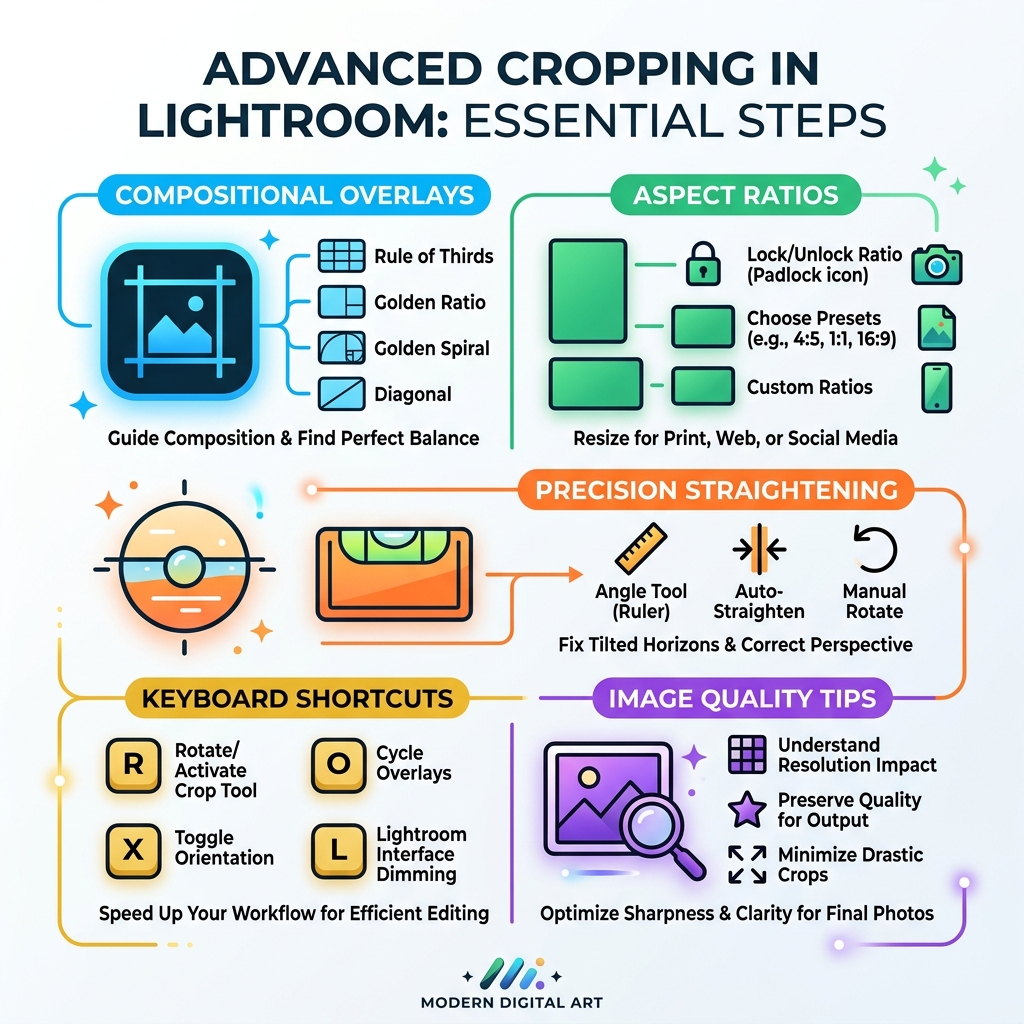
An advanced cropping lightroom tutorial covers far more than just trimming edges. Here’s a quick overview of what you can master:
- Compositional overlays – Use Rule of Thirds, Golden Spiral, and more to guide every crop decision
- Aspect ratios – Lock, unlock, and customize ratios for print, web, and social media
- Precision straightening – Use the Angle tool, Auto-straighten, or manual rotation to fix tilted shots
- Keyboard shortcuts – Speed up your workflow with
R,O,X,L, and more - Image quality – Understand how cropping affects resolution and how to compensate
- Non-destructive editing – Experiment freely, knowing your original file is always safe
Most photographers think cropping means cutting out the boring edges. But the crop tool in Lightroom is one of the most powerful composition tools you have.
A tight, intentional crop can transform a flat, forgettable photo into something that stops people mid-scroll. It removes distractions, emphasizes your subject, and guides where the viewer’s eye travels.
There’s a well-known saying in photography circles: there are two kinds of photographers – those who admit they crop, and those who claim they don’t. The truth is, even legendary photographers have relied on cropping to strengthen their work.
And the best part? In Lightroom, cropping is completely non-destructive. Your original image is never touched. You can try bold crops, change your mind, and reset back to the original anytime. That freedom makes it the perfect place to experiment and learn.
Whether you’re fixing a tilted horizon, preparing an image for Instagram, or simply trying to make a photo feel more alive – this guide walks you through every advanced technique you need.
Mastering Composition with an Advanced Cropping Lightroom Tutorial
When we talk about an advanced cropping lightroom tutorial, we aren’t just talking about making a photo smaller. We are talking about re-envisioning the shot. Sometimes, the photo we saw through the viewfinder isn’t exactly what the sensor captured, or perhaps we see a “photo within a photo” once we get the file onto a large monitor.
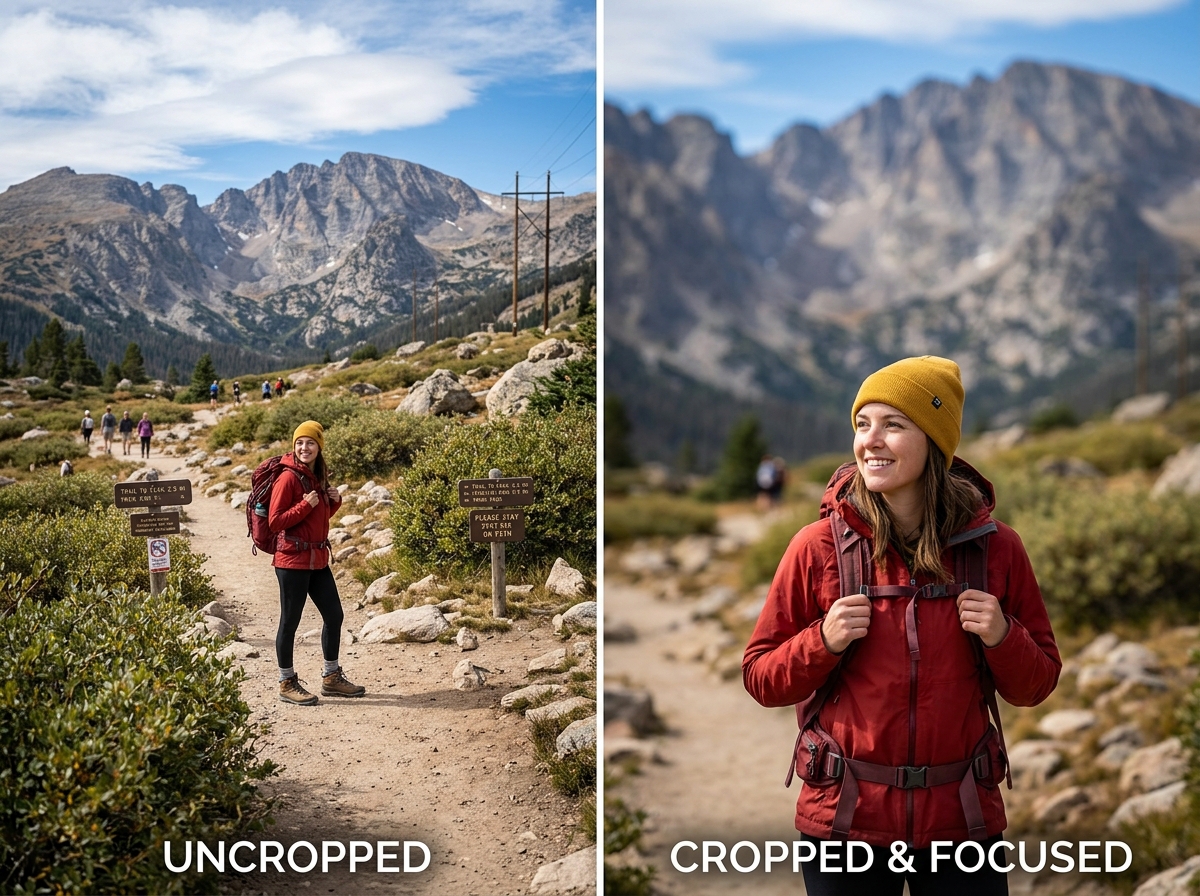
Cropping allows us to “fill the frame” with the most important elements. This is a core tenet of professional photography. If a viewer has to hunt for the subject, the impact is lost. By trimming away dead space, we force the viewer to engage with the story we want to tell.
Furthermore, cropping is a savior for technical imperfections. Many lenses suffer from “soft corners,” where the edges of the image aren’t as sharp as the center. A slight crop can remove these blurry bits, leaving only the crispest part of the glass. It also helps us remove distracting elements—like a stray power line or a “photobombing” branch—that we might have missed in the field. For more specific advice on how to align these elements, check out our crop and composition editing tips.
Leveraging Overlays in Your Advanced Cropping Lightroom Tutorial
One of the most underutilized features in Lightroom is the suite of compositional overlays. These aren’t just “grid lines”; they are mathematical guides based on centuries of art theory.
When you have the Crop tool active (press R), you can cycle through these overlays by pressing the O key.
- Rule of Thirds: The classic grid. Place your subject on the intersections for a balanced, natural feel.
- Golden Ratio: Similar to the Rule of Thirds but with a tighter central focus, often perceived as more “organic.”
- Golden Spiral (Fibonacci Spiral): Perfect for leading the eye through a scene toward a focal point. If the spiral is facing the wrong way, use
Shift + Oto flip or rotate it until it fits your subject. - Diagonal and Triangle Overlays: These are fantastic for action shots or images with strong leading lines, helping you create a sense of dynamic movement.
Using these overlays helps us move beyond “center-punching” our subjects. For bird photographers, these tools are essential for placing a bird’s eye exactly where it creates the most tension and interest. You can find more on this in our guide to natural-looking edits for bird photos.
The Psychology of the Crop
Cropping is as much about psychology as it is about pixels. By changing the crop, we change the narrative. A wide crop with lots of “negative space” can make a subject feel lonely, small, or peaceful. Conversely, a tight crop can make a scene feel intimate, intense, or even claustrophobic.
We use the crop to define the viewer’s eye-path. If you crop so that a bird is looking into the frame rather than out of it, you create a sense of anticipation. If you crop too close to the direction of travel, the subject feels “blocked.” Mastering these subtle shifts is what separates a snapshot from a professional photograph. If you’re just starting out, our beginner bird photo editing tips cover these foundational concepts in depth.
Managing Aspect Ratios for Print and Social Media
Understanding aspect ratios is perhaps the most “technical” part of an advanced cropping lightroom tutorial. The aspect ratio is the relationship between the width and the height of your image. Most modern DSLRs and mirrorless cameras shoot in a 3:2 ratio. However, the world doesn’t always want 3:2.
In the Crop & Straighten panel, you’ll see a small padlock icon.
- Locked: When the lock is closed, dragging the corners maintains the current ratio (e.g., if it’s 3:2, it stays 3:2).
- Unlocked: Click the lock to open it, and you can “freestyle” the crop to any dimensions you like.
For social media, specific ratios are king. Instagram prefers a 4:5 ratio for vertical “portrait” shots to take up the most screen real estate. If you use a standard 3:2 vertical shot, Instagram will crop it for you—often poorly! By choosing the 4:5 preset in Lightroom, you stay in control. If you’re working with specific themes, like wildlife, our lightroom presets for urban birds can help complement these structural changes.
Custom Ratios and Presets
Sometimes, standard presets like 5:7 or 8×10 aren’t enough. Lightroom allows you to enter “Custom” dimensions. If you need a specific pixel size for a website header (say, 1920×600), you can enter these values directly into the Aspect Ratio dropdown.
A pro tip for efficiency: use the X key. While in the crop tool, pressing X instantly flips your crop from landscape (horizontal) to portrait (vertical) orientation. This is much faster than manually dragging the corners to force the change.
Precision Straightening and Technical Constraints
Nothing ruins a great photo faster than a “leaking” ocean—where the horizon line is slightly tilted. Straightening is a core component of any advanced cropping lightroom tutorial.
We have three main ways to fix this in Lightroom:
- The Angle Slider: Manually slide it left or right to tilt the image.
- The Straighten Tool (Level Icon): This is our favorite. Click the little level icon next to the slider, then click and drag a line along what should be horizontal or vertical (like a horizon or a building edge). Lightroom does the rest.
- Auto Button: Click “Auto” in the Crop panel. If there’s a clear horizontal line, Lightroom usually nails it.
When straightening, we always look for the “strongest line.” In a landscape, it’s the horizon. In architecture, it’s the vertical corner of a building. For more technical details, you can refer to Adobe’s official guide on cropping and straightening.
Technical Excellence: An Advanced Cropping Lightroom Tutorial for Quality
We must address the “elephant in the room”: pixel loss. Every time we crop, we are throwing away data. If you take a 24-megapixel image and crop it heavily, you might end up with only 6 megapixels.
To keep an eye on this, press the I key while in the Develop module to toggle the “Info Overlay.” This will show you the exact pixel dimensions of your crop.
If you perform a “major crop” (losing more than 20-30% of the image), you must compensate with detail enhancements. We recommend:
- Sharpening: Increase the “Amount” and use the “Masking” slider (hold
Alt/Optionwhile dragging) to ensure you aren’t sharpening background noise. - Noise Reduction: Significant crops magnify digital noise. Use the “Luminance” slider to smooth things out, but don’t go too far, or your subject will look like plastic.
Another advanced feature is “Constrain to Image.” When you use the Transform tools to fix perspective, you often end up with white “empty” wedges at the edges. Checking “Constrain to Image” (or “Constrain to Crop” in newer versions) forces the crop box to stay within the actual pixels of your photo, automatically trimming away those empty gaps.
Workflow Efficiency and Maintaining Image Quality
To work like a pro, you need to master the toolstrip. The Crop tool is located just below the Histogram, but we almost exclusively use the R shortcut to jump in and out.
Efficiency tips we use daily:
- Lights Out View (
L): PressLonce to dim the interface and twice to black it out entirely. This hides all the sliders and panels, letting you focus purely on the composition of your crop. - Syncing Crops: If you have a series of photos taken from a tripod that all need the same 4:5 crop, select them all in the filmstrip and click “Sync.” Check the “Crop” box to apply the exact same framing to every image.
- Virtual Copies: If you can’t decide between a square crop and a wide cinematic crop, right-click the image and select “Create Virtual Copy.” You can now have two different crops of the same file without taking up extra disk space.
Lightroom is non-destructive. If you spend ten minutes perfecting a crop and realize it’s too tight, you can just hit the “Reset” button at the bottom of the Crop panel. Your original pixels are still there, waiting.
Frequently Asked Questions about Advanced Cropping
How do I crop to a specific pixel size for web use?
In the Crop tool, click the “Original” or “As Shot” text next to the padlock to open the Aspect Ratio menu. Select “Enter Custom” and type in your desired pixel dimensions (e.g., 1200 x 628). While this sets the shape, the actual resizing happens during the Export process. To ensure the final file is exactly those pixels, set the “Image Sizing” options in the Export dialog to “Resize to Fit” and enter the same dimensions.
Is cropping in Lightroom destructive to my original file?
No. Lightroom is a “parametric” editor. It saves a set of instructions (like a recipe) rather than altering the actual pixels of your RAW or JPEG file. When you “apply” a crop, you are just telling Lightroom to hide the parts you don’t want to see. You can revert to the full image at any point, even years later.
How can I see the dimensions of my crop while editing?
The easiest way is to use the I key (Info Overlay). Press it repeatedly to cycle through different views until you see the pixel dimensions (e.g., 4000 x 3000). This is vital if you plan on printing large, as you’ll want to ensure you still have enough resolution for a high-quality print.
Conclusion
Mastering an advanced cropping lightroom tutorial is about more than just “fixing” mistakes; it’s about refining your creative vision. Whether you’re using the Golden Spiral to place a bird’s eye or locking a 4:5 ratio for your next viral social media post, these tools give you ultimate control over how the world sees your work.
At Ciber Conexão, Hugo Andrade and our team are dedicated to helping you bridge the gap between a good shot and a masterpiece. Cropping is the final step in the compositional journey that began when you pressed the shutter.
Ready to take your editing to the next level? Dive deeper into our category/photo-editing/ section for more expert tips, or Explore our photography gear guides to find the best tools for your next shoot. Happy cropping!
