
What Are the Basics of Photo Editing (And Why They Matter)
What are the basics of photo editing is something every beginner photographer eventually needs to understand — and the good news is it’s simpler than it looks.
Here’s a quick answer:
- Crop and straighten — remove distractions and fix your composition
- Adjust exposure — correct brightness, highlights, and shadows
- Fix white balance — remove unwanted color casts
- Enhance color — boost saturation or vibrance with a light touch
- Sharpen and reduce noise — add crispness without overdoing it
- Export — save at the right size and quality for your intended use
That’s the core workflow. Everything else builds on these six steps.
Open almost any editing program for the first time and you’ll feel overwhelmed. Sliders everywhere. Panels full of options. It’s a lot.
But here’s the thing: most photos only need a handful of adjustments to go from flat and dull to sharp and polished. You don’t need to touch every slider. You don’t need expensive software. You just need to know where to start.
Think of editing not as “fixing” a bad photo, but as revealing what was already there. Your camera captures light and converts it into data — but it doesn’t know what mood you were going for, which parts of the frame matter, or how the light actually felt in that moment. Editing is where you make those decisions.
One thing that trips up a lot of beginners: they jump straight into boosting colors and contrast before fixing the fundamentals. The result? Photos that look oversaturated, unnatural, and over-processed. Getting the order right makes a huge difference.
What Are the Basics of Photo Editing? A Step-by-Step Workflow
When we talk about what are the basics of photo editing, we are really talking about a structured workflow. Jumping randomly between sliders is a recipe for a messy image. Instead, we recommend a “Global to Local” approach. You start with changes that affect the whole image (Global) and finish with tiny, specific tweaks (Local).
The Correct Editing Order
Following a logical sequence prevents you from having to redo work. For instance, if you boost the colors before fixing the exposure, your colors might shift or “clip” once you brighten the image. Here is the workflow we swear by:
- Import and Cull: Bring your photos in and pick the best ones. Don’t waste time editing a blurry shot!
- Basic Composition: Straighten the horizon and crop.
- Global Tone & Color: Fix the white balance, then the exposure and contrast.
- Presence & Detail: Adjust clarity, texture, and saturation.
- Local Adjustments: Remove dust spots or distracting power lines.
- Sharpening & Noise Reduction: Clean up the technical quality.
- Export: Save for your final destination.
Choosing Your Tools
You don’t need to spend a fortune to get started. There is plenty of beginner-friendly photo editing software available today. For those who want a professional start, Image Editing 101 – provides a fantastic foundation on how digital images work. While Photoshop is the industry giant, free tools like Darktable or RawTherapee are excellent for learning the ropes without a subscription.
RAW vs. JPEG: The Great Debate
One of the most important decisions you’ll make happens before you even open your editor: choosing your file format.
- JPEG: These are “finished” files. The camera processes the data, adds contrast and sharpening, and then throws away the “extra” information to save space. They are great for social media but terrible for heavy editing.
- RAW: This is the “digital negative.” It contains all the data the sensor captured. It looks flat and dull at first, but it gives you massive flexibility. If you accidentally underexpose a shot, a RAW file allows you to “recover” the shadows without the image falling apart.
If you are serious about learning what are the basics of photo editing, shoot in RAW. It is much more forgiving, especially when applying beginner bird photo editing tips where lighting can be unpredictable.
Mastering Composition, Tone, and Color Adjustments
Once your photo is in the editor, the first thing we look at is the “bones” of the image: composition and color.
Straightening and Cropping
Nothing screams “amateur” like a crooked horizon. Most editors have a “Straighten” tool where you simply draw a line along the horizon, and the software levels it for you. After that, use the crop tool to remove distractions. Are there distracting branches at the edge of your frame? Crop them out. We often use crop and composition editing tips to place the subject on a “Rule of Thirds” intersection, making the image feel more balanced.
Cleaning Up the Frame
Sometimes a photo is perfect except for a stray piece of trash or a sensor dust spot. This is where “Spot Healing” comes in. This tool allows you to paint over a distraction, and the software intelligently replaces it with nearby pixels. This is essential for removing distractions from bird photos, such as unwanted twigs or background clutter. For more advanced manipulation like this, an introduction to Photoshop photo editing. can show you how to use layers to make these changes safely.
Saturation vs. Vibrance: Know the Difference
A common mistake is cranking the saturation slider to 100. This makes everyone look like they have a bad spray tan. Instead, use Vibrance.
| Feature | Saturation | Vibrance |
|---|---|---|
| Effect | Boosts every color in the image equally. | Boosts muted colors more than already saturated ones. |
| Skin Tones | Can make skin look orange/unnatural. | Protects skin tones, keeping them natural. |
| Best Use | When the entire image is very dull. | For portraits or subtle landscape enhancements. |
Understanding Exposure and the Histogram as Basics of Photo Editing
Exposure is simply how bright or dark your photo is. While you can use your eyes, your monitor might be lying to you (more on that later). This is why we use the Histogram.
The histogram is a little graph that shows the tonal range of your image.
- Left side: Represents the blacks and shadows.
- Middle: Represents the midtones.
- Right side: Represents the highlights and whites.
If the graph is “crunched” against the left side, your shadows are “crushed” (pure black with no detail). If it’s hitting the right side, your highlights are “blown” or “clipped” (pure white). Our goal is usually to keep the “mountain” of the graph within the boundaries. When correcting lighting in bird images, we use the Highlights and Shadows sliders to bring back detail in bright feathers or dark foliage.
Correcting White Balance and Color as Basics of Photo Editing
White balance is about removing “color casts.” Have you ever taken a photo indoors that looked way too yellow? Or a snowy scene that looked blue? That’s a white balance issue.
We use the “Temperature” slider to make the image warmer (yellow) or cooler (blue), and the “Tint” slider to balance green and magenta. A pro tip: use the “Eyedropper” tool and click on something in your photo that should be a neutral gray or white. The software will instantly calculate the correct balance for you. This is a key step in achieving natural looking edits for bird photos and can significantly enhance colors in bird photography without making them look “fake.”
Final Refinements: Sharpening, Noise, and Exporting
The last 10% of editing is where you “polish” the pixels.
Sharpening and Noise Reduction
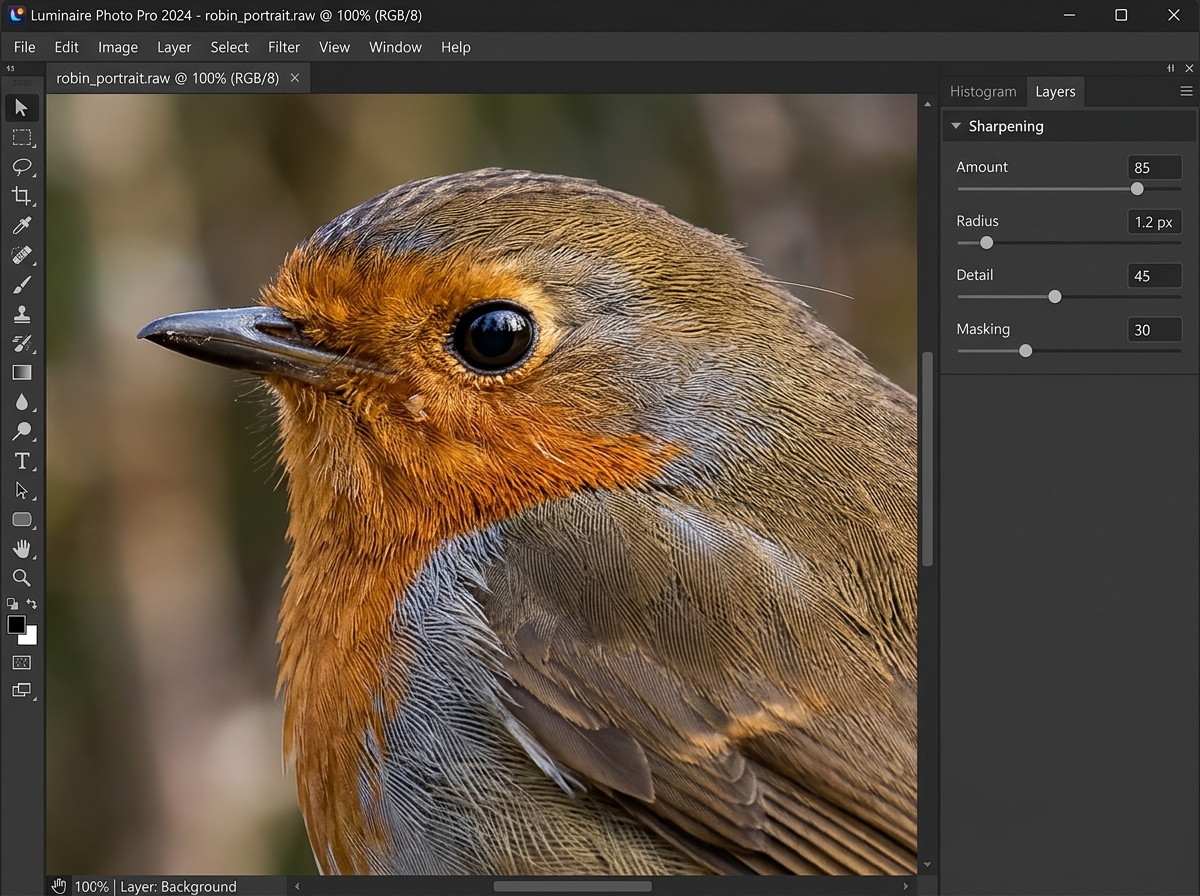
Every digital image needs a little sharpening because the sensor itself introduces a tiny bit of softness. However, sharpening also increases “noise” (that grainy look in dark areas).
When sharpening, always zoom in to 100% zoom. If you don’t, you won’t see the “halos” or “crunchiness” that over-sharpening causes. Use the “Masking” slider (if your software has it) to ensure you are only sharpening edges (like eyes or feathers) and not flat areas like the sky. This is particularly vital for sharpening bird images in post to keep the feathers crisp while keeping the background buttery smooth.
The Importance of Layers
If your software supports them, use layers! Layers allow for “non-destructive editing.” Instead of changing the original pixels, you are essentially placing a sheet of clear glass over your photo and making your changes there. If you realize later that you went too far with the contrast, you can just delete that layer or lower its opacity.
Exporting: The Final Step
Don’t just hit “Save.” You need to export for your specific needs:
- For Web/Social Media: Use JPEG format, set the quality to 80-90%, and resize the “long edge” to about 2048 pixels. This keeps the file small enough to load quickly but sharp enough to look great.
- For Print: Keep the resolution at its maximum and use 100% quality. You want every single pixel available for the printer.
By following these steps, you can turn pixels into perfection and get better quality image online.
Frequently Asked Questions about Photo Editing
What is the best way to learn photo editing?
The “Fuck Around and Find Out” (FAFO) method is surprisingly effective. Open a photo, grab a slider, and drag it all the way to the left, then all the way to the right. See what it does! Combine this experimentation with targeted YouTube tutorials for specific techniques like masking or frequency separation.
Why is monitor calibration important for accuracy?
Have you ever edited a photo to look perfect, only to see it on your phone and realize it’s way too dark or green? That’s because every screen displays color differently. Professional editors use a “calibration tool” to ensure their monitor is showing “true” colors. If you aren’t ready for that, at least ensure your screen brightness is at a consistent level when editing.
What are common beginner mistakes to avoid?
The “Big Three” mistakes are:
- Over-saturation: Making the grass look radioactive.
- Over-sharpening: Creating white halos around every edge.
- Destructive Editing: Saving over your original file. Always keep your “Master” RAW file untouched!
Conclusion
Understanding what are the basics of photo editing is the bridge between a “snapshot” and a “photograph.” It allows you to take the raw data from your camera and mold it into the artistic vision you had when you clicked the shutter.
At Ciber Conexão, Hugo Andrade and our team believe that editing should be an extension of your creativity, not a chore. Whether you are fixing a horizon or diving deep into color grading, the goal is to enhance the story your image is trying to tell. If you’re ready to dive deeper into specific techniques, be sure to explore our full photo editing category for more expert guides. Happy editing!
