
Why Every Photo You Take Deserves a Better Edit
A guide to photo editing is something every photographer — beginner or not — genuinely needs. Not because your photos are bad, but because every camera, including your smartphone, captures a starting point, not a finished image.
Here’s a quick overview of the basic photo editing steps to get you started:
- Import and cull – Choose only your best shots to edit
- Crop and straighten – Fix composition and level your horizon
- Adjust white balance – Get natural, accurate colors
- Fix exposure – Correct brightness, highlights, and shadows
- Boost color – Use vibrance and saturation carefully
- Apply local adjustments – Target specific areas like skies or faces
- Sharpen and reduce noise – Add crispness without overdoing it
- Export – Save in the right format for web, print, or sharing
You’ve probably seen it happen. Someone takes a stunning photo, then cranks up every slider until the sky turns neon and the colors look like a candy commercial. Or the opposite — they do nothing at all, and a genuinely great shot stays flat and forgettable.
The gap between those two outcomes is where good editing lives.
Photo editing isn’t about fixing mistakes or slapping on a preset and calling it done. It’s about shaping how a moment feels. A small tweak to the shadows here, a subtle crop there — and suddenly an ordinary photo tells a real story.
One of the most common struggles photographers face isn’t learning which button to press. It’s understanding why they’re pressing it. That’s exactly what this guide is designed to fix.
Whether you’re shooting on a DSLR, mirrorless, or your phone, the principles are the same. And no, you don’t need to be a Photoshop wizard to make your photos look genuinely great.

The Foundation: RAW Files and Software Selection
Before we move a single slider, we need to talk about the “ingredients” of your photo. In digital photography, you generally have two choices: RAW or JPEG.
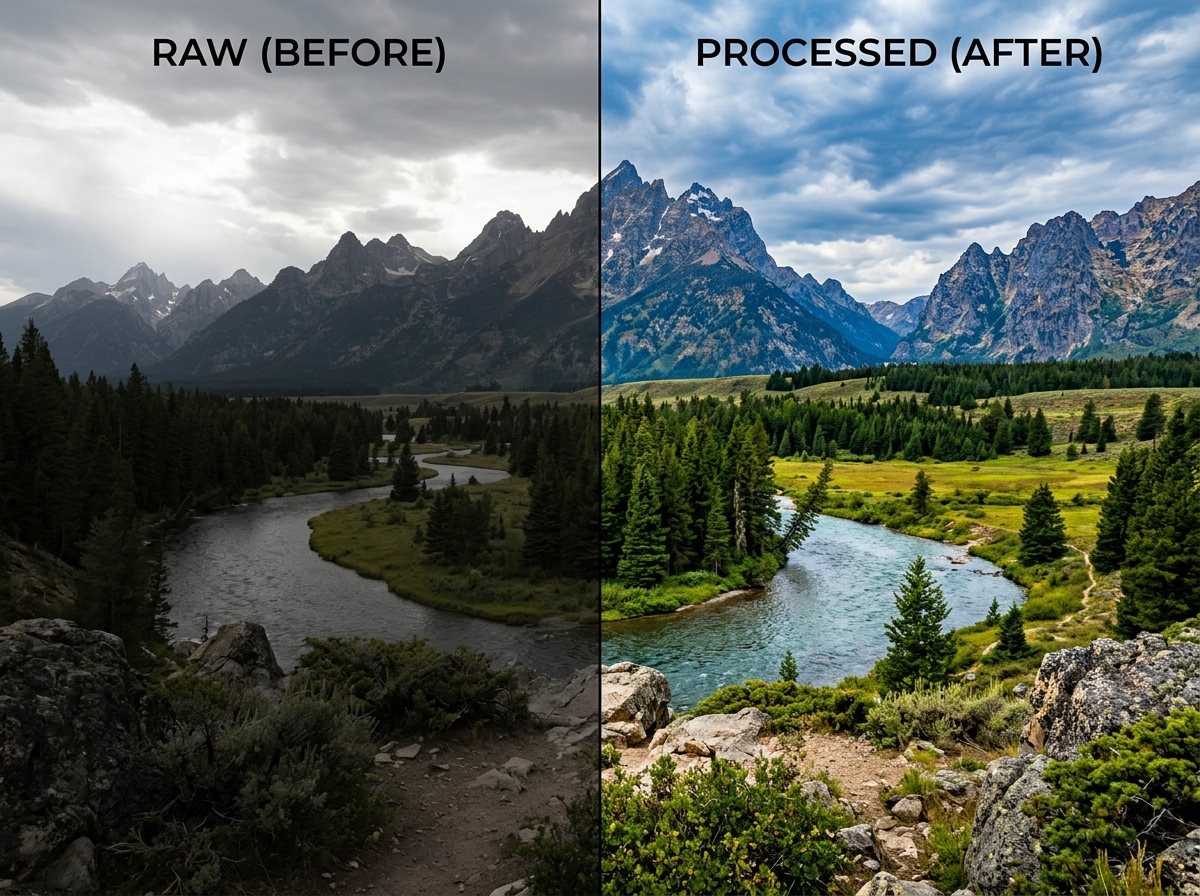
Think of a JPEG like a meal that has already been cooked, seasoned, and plated by your camera. It looks good immediately, but if you decide it’s too salty or needs more spice, you’re limited in what you can change without ruining the dish. A RAW file, on the other hand, is like a bag of high-quality raw ingredients. It doesn’t look like much at first—often appearing flat or dull—but it contains all the data the camera sensor captured. This gives us massive flexibility to change exposure, recover lost details in bright skies, or fix the color temperature without the image falling apart.
RAW files typically offer 12-bit or 14-bit depth, providing thousands of shades of color per channel, whereas JPEGs are 8-bit, which is much more restrictive. This extra data is why we always recommend shooting in RAW if your camera (or smartphone) allows it.
| Feature | RAW Files | JPEG Files |
|---|---|---|
| Data Content | Uncompressed sensor data | Compressed and processed |
| Editing Latency | Extremely high (recover highlights/shadows) | Limited (artifacts appear quickly) |
| File Size | Large (20MB – 80MB+) | Small (2MB – 10MB) |
| White Balance | Can be changed perfectly after the shot | Baked-in; hard to adjust accurately |
| Bit Depth | 12-bit or 14-bit (billions of colors) | 8-bit (16.7 million colors) |
Essential Software for Your Guide to Photo Editing
Choosing the right tool is the next big step. We often categorize software into “RAW developers” (like Lightroom) and “pixel editors” (like Photoshop). For most people, a RAW developer is where you will spend 90% of your time because it allows for beginner-friendly photo editing software experiences that are non-destructive—meaning your original file is never actually changed.
- Adobe Lightroom: The gold standard for organizing and editing large volumes of photos. It’s intuitive and uses a slider-based system that is easy to master.
- Darktable or RawTherapee: Excellent free, open-source alternatives for those who aren’t ready for a subscription.
- Mobile Apps: You don’t need a PC to get started. There are fantastic apps for iPhone bird photo editing and even specific workflows for editing pigeon photos on mobile that bring professional-grade tools to your pocket.
A Step-by-Step Guide to Photo Editing Workflow
We’ve found that the best edits come from a structured workflow. If you jump straight into color grading before fixing the brightness, you’ll end up chasing your tail.
First, import and cull. Don’t try to edit 500 photos from a single afternoon. Be ruthless. Pick the best 20. Once you’ve selected your champions, follow a logical order. We usually start with the “big” technical fixes before moving to the creative touches. For those starting out, these beginner bird photo editing tips emphasize getting the basics right first. The goal is always to achieve natural looking edits for bird photos or any subject, ensuring the “hand of the editor” remains invisible.
Setting the Mood with Global Adjustments
Global adjustments affect the entire image at once. This is where you build your foundation.
- White Balance: This corrects the “temperature” of the light. If your photo looks too blue (cold) or too yellow (warm), use the eyedropper tool on a neutral gray or white area to snap it back to reality.
- Exposure: This is the overall brightness. Check your Histogram—that little mountain graph in the corner. If the graph is all the way to the left, your photo is underexposed (too dark). If it’s smashed against the right, it’s overexposed (too bright).
- Contrast: This adds punch by making the darks darker and the lights lighter. Use it sparingly; too much contrast makes an image look garish.
- Highlights and Shadows: These are your recovery tools. If the sky is too bright, pull the Highlights slider down. If the subject’s face is in deep shadow, push the Shadows slider up.
For those interested in specific vibes, color grading for urban bird photography can transform a gray city shot into a cinematic masterpiece. You can even use Lightroom presets for urban birds to get a head start on a specific aesthetic.
Mastering Light, Color, and Composition
Once the light is balanced, we look at the “bones” of the photo: the composition. Even a perfect exposure can’t save a crooked horizon or a distracting telephone pole growing out of someone’s head.
We always suggest starting with these crop and composition editing tips. Use the Rule of Thirds grid to place your subject off-center for a more dynamic feel. Don’t be afraid to crop tightly; often, “less is more” when it comes to visual storytelling. While you’re at it, use the Straighten tool to ensure your horizons are perfectly level—nothing ruins a landscape faster than a sea that looks like it’s draining out of the side of the frame.
If there are small distractions, like a piece of trash on the ground or a stray branch, use the “Healing” or “Spot Removal” tool. This is particularly useful for removing distractions from bird photos where a twig might be blocking a clear view of the feathers.
Vibrance vs Saturation and Color Theory
This is where many beginners fall into the “filter disaster” trap. There is a massive difference between Saturation and Vibrance:
- Saturation: Intensifies every color in the photo equally. It’s very easy to overdo, making skin tones look like orange peel.
- Vibrance: A “smarter” tool. It primarily boosts the muted colors while leaving the already-saturated colors (and skin tones) alone.
We almost always prefer Vibrance. For more advanced control, use the HSL (Hue, Saturation, Luminance) panel. This allows you to change specific colors. For example, you can make just the greens in a forest deeper without affecting the blue sky. This is a secret weapon for enhancing bird feathers in editing. Whether you are enhancing bird feathers in editing 2 or looking for even more detail in enhancing bird feathers in editing 3, the HSL panel is your best friend.
Precision Editing: Local Adjustments and AI Tools
Sometimes, a global adjustment isn’t enough. Maybe the whole photo looks great, but the subject’s face is just a little too dark. This is where Local Adjustments come in.
Using tools like Brushes, Linear Gradients, and Radial Filters, you can “paint” your edits onto specific parts of the image. Modern software has made this even easier with AI Masking. With one click, you can “Select Subject” or “Select Sky,” and the software does the hard work of creating a perfect mask for you.
For more complex work, these Photoshop tips for bird photos dive into layers. Features like Generative Fill allow you to expand a background or remove complex objects by simply typing what you want. It’s like magic, but remember: use it to enhance your reality, not to fabricate a fake one.
Avoiding Common Mistakes in Your Guide to Photo Editing
We’ve all been there—you spend an hour editing, feel great about it, and then look at the photo the next morning only to realize it looks terrible. Here are the most common pitfalls to avoid:
- Over-Saturation: If the colors look “neon,” pull it back.
- Crushing the Blacks: If the shadows are so dark that all detail is lost, your photo will look heavy and muddy.
- The Halo Effect: This happens when you push the “Clarity” or “Highlights” sliders too hard, creating a weird glowing line around subjects.
- Over-Sharpening: This introduces “noise” and makes the photo look crunchy and digital.
- Uncalibrated Monitors: If your screen is too bright, your exports will be too dark. Always check your histogram!
Pro Tip: Always step away from your computer for 15 minutes before you hit “Export.” Fresh eyes are the best editing tool you own.
Final Touches: Sharpening, Noise, and Exporting
The final stage of our guide to photo editing is preparing the file for the world.
First, address Noise. If you shot in low light, your photo might have “grain” or colored speckles. Use AI Denoise tools to clean this up while preserving detail. Next is Sharpening. Always zoom in to 100% when sharpening. You want to enhance the edges, not create texture where there isn’t any. Use “Masking” in the sharpening panel to ensure you aren’t sharpening flat areas like the sky—only the edges of your subject. This is crucial when sharpening bird images in post to keep those feathers looking crisp but natural.
Finally, Exporting. The settings matter:
- For Web/Social Media: Use the sRGB color space, set the quality to around 80-85%, and resize the long edge to 2048 pixels.
- For Print: Use the original resolution, a high-quality format like TIFF or a high-bitrate JPEG, and consider the CMYK color space if your printer requires it.
- Archiving: Always keep your original RAW files and a copy of your edited version (like a .PSD or .DNG) so you can return to them later.
Frequently Asked Questions about Photo Editing
Should I use Lightroom or Photoshop for my edits?
For most photographers, Lightroom is the primary tool. It’s designed for a “global to local” workflow and handles organization. Photoshop is for “pixel-level” surgery—like removing complex objects, swapping heads in a group photo, or creating composite art. Most pros use both: they start in Lightroom and only move to Photoshop if a specific task requires it.
What is non-destructive editing and why does it matter?
Non-destructive editing means the software doesn’t change the pixels of your original file. Instead, it saves a list of “instructions” (like “add +1 exposure”). This is vital because it means you can always undo an edit, even years later, without losing any image quality.
How do I know when a photo is “done”?
A photo is done when the edit supports the story you wanted to tell. If you find yourself moving sliders back and forth by tiny increments, or if the edit is the first thing people notice instead of the subject, you’ve probably gone too far. Trust your gut, and remember: less is often more.
Conclusion
At Ciber Conexão, our goal is to help you bridge the gap between what your camera sees and what you envisioned. As Hugo Andrade often says, editing is the “second half” of the photographic process. It’s where your artistic vision truly comes to life.
Don’t be afraid to experiment. Use this guide to photo editing as a map, but don’t be afraid to take the scenic route. Play with the sliders, try weird colors, and then pull them back until they feel right. The more you practice, the more you will develop a personal style that is uniquely yours.
Check out more photo editing tutorials and tips to keep refining your craft. Happy editing!
