
Why Cropping Can Make or Break Your Photos
Lightroom crop best practices every photographer should know:
- Press R to open the Crop tool in the Develop module
- Straighten first using the Angle slider, then crop
- Use overlays (press O) like Rule of Thirds to guide composition
- Lock your aspect ratio for consistent output across platforms
- Crop non-destructively — your original is always safe and recoverable
- Check pixel dimensions via Loupe Info before finalizing for print or web
- Apply Lens Correction before cropping to avoid double-cropping after distortion fixes
Most people think cropping is just about cutting stuff out. It’s not.
A well-placed crop completely changes how a photo feels. It can turn a flat, forgettable snapshot into something that stops people mid-scroll. As one photography instructor famously put it, even legendary photographers like Henri Cartier-Bresson cropped their most iconic shots — including his famous puddle-jumper photo from Gare Saint Lazare.
The good news? Lightroom’s crop tool is one of the most powerful — and beginner-friendly — tools in your editing workflow. It’s also completely non-destructive, meaning you can experiment freely without ever damaging your original image.
But without knowing a few key techniques, it’s easy to crop in ways that feel off — awkward compositions, wrong aspect ratios for your platform, or images that lose too much detail for print.
This guide walks you through everything you need to crop with confidence.
Mastering the Basics of the Lightroom Crop Tool
Before we dive into the artistic side of things, we need to get comfortable with the mechanics. In Lightroom Classic, the Crop tool is located in the tool strip right under the Histogram in the Develop module. It looks like a dashed square.
The fastest way to get there? Just press R on your keyboard. This is a shortcut we use constantly. Once active, the Crop & Straighten panel expands, giving you all the controls you need to reshape your image.
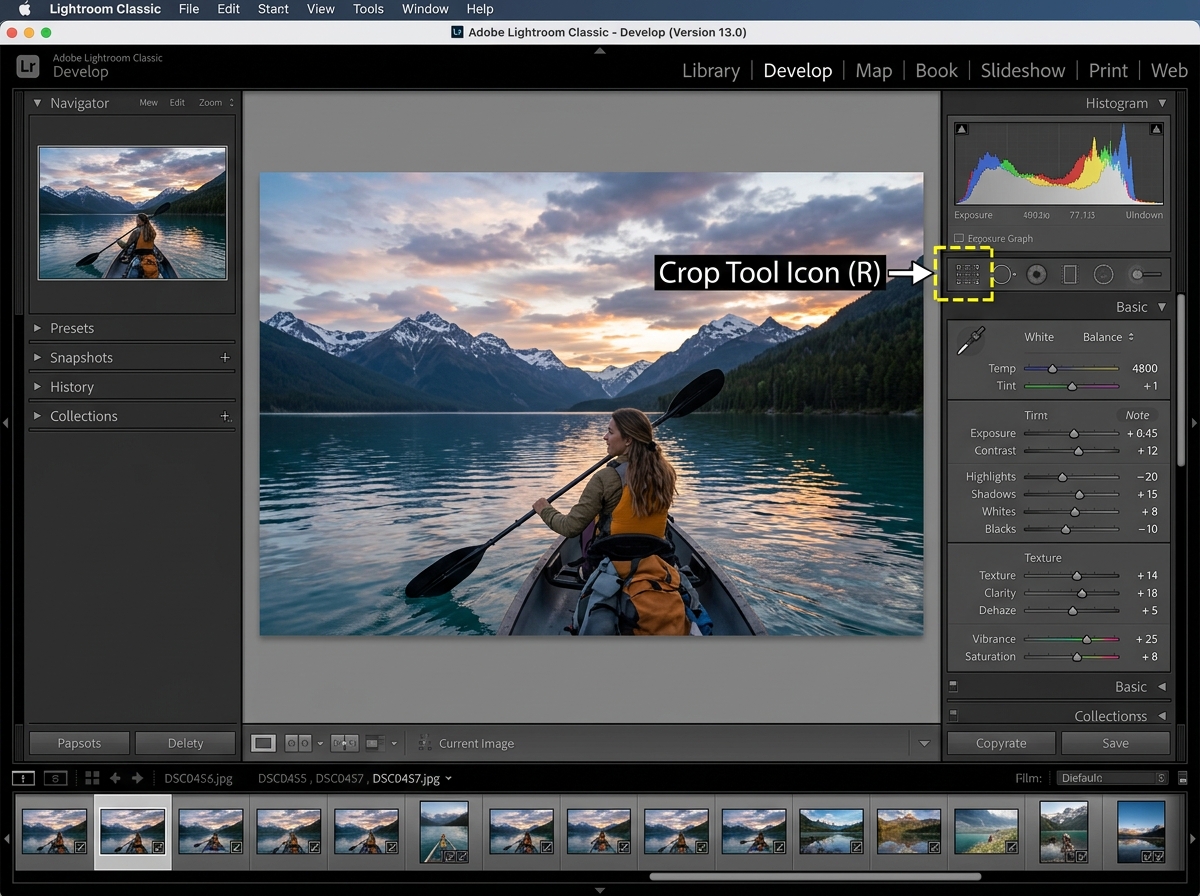
Straightening and Leveling
One of the biggest “tells” of an amateur photo is a slanted horizon. Unless you’re going for a specific Dutch angle for creative effect, a crooked horizon feels physically uncomfortable to look at. Lightroom offers three main ways to fix this:
- The Angle Slider: You can manually slide this left or right to tilt the image.
- The Spirit Level (Ruler Tool): Click the little level icon next to the slider, then click and drag a line along what should be a horizontal or vertical line in your photo (like the ocean or a building edge). Lightroom will automatically snap the image level.
- Manual Rotation: Hover your cursor just outside any corner of the crop boundary. When it turns into a curved double-headed arrow, click and drag to rotate.
Orientation and Resizing
Sometimes a photo works better as a vertical, even if you shot it horizontally. To swap the orientation of your crop box instantly, press X. This is a lifesaver when you’re trying to see if a landscape shot has a hidden portrait-oriented masterpiece inside it.
To resize, simply grab the handles on the edges or corners. If you want to dive deeper into the technical steps, Adobe provides a great breakdown on how to Crop and resize images.
Lightroom Crop Best Practices for Composition
Cropping is essentially a “second chance” at composing your shot. While we always aim to get it right in-camera, the reality is that fast-moving subjects—like birds or athletes—don’t always wait for us to line up the perfect shot.
In Lightroom, we have access to “Crop Overlays.” These are visual guides that appear over your image to help you place your subject. By default, you’ll see the Rule of Thirds. However, you can press O to cycle through different overlays:
- Rule of Thirds: Great for general balance.
- Golden Ratio: Similar to thirds but more centered, often feeling more “natural.”
- Golden Spiral (Fibonacci Spiral): Perfect for leading the eye through the frame to a specific focal point.
- Diagonal and Triangle: Excellent for dynamic action shots.
If an overlay like the Golden Spiral is facing the wrong way, press Shift+O to flip its orientation. This allows you to align the “eye” of the spiral exactly where your subject sits. For a deeper dive into these principles, check out The Ultimate Guide to Better Photo Composition.
Using Overlays to Train Your Eye
We often tell our students at Ciber Conexão that the crop tool isn’t just for fixing mistakes; it’s a training tool. By experimenting with different overlays on your old photos, you start to recognize these patterns in the real world. Eventually, you’ll find yourself naturally placing subjects on those “power points” while you’re out shooting.
Using these guides helps achieve visual balance and ensures your subject isn’t just “stuck in the middle,” which can often look static and uninteresting. For more hands-on advice, see our Crop and Composition Editing Tips.
Managing Aspect Ratios and Dimensions for Different Platforms
One of the most common mistakes we see is photographers cropping “freestyle” without considering where the photo will end up. If you crop a photo to a random shape and then try to print it as an 8×10, you’re going to have a bad time.
Lightroom uses “Aspect Ratios” to keep things consistent. Next to the word “Aspect” in the crop panel, you’ll see a padlock icon. If the padlock is closed, Lightroom will maintain the proportions of your crop as you resize it. If it’s open, you can drag the handles to create any custom shape you want.
| Aspect Ratio | Common Use Case |
|---|---|
| Original / 3:2 | Standard DSLR/Mirrorless sensor shape and 4×6 prints. |
| 4:5 / 8:10 | Traditional portraits and the ideal ratio for Instagram portrait posts. |
| 1:1 | The classic “Square” crop, popular for social media profile pictures. |
| 16:9 | Widescreen format, perfect for cinematic looks or TV displays. |
When shooting wildlife, for instance, you might need to switch between these depending on the bird’s posture. We have some specific Vertical or Horizontal Framing Tips for Bird Photography that explain this further.
Lightroom Crop Best Practices for Print and Web
If you are preparing an image for a high-quality A3 print, you need to keep an eye on your pixel dimensions. Cropping “zooms in” on your image, which means you are throwing away pixels. If you crop too aggressively, your print will look pixelated or soft.
To monitor this, you can use the Loupe Info overlay. In the Library module, go to View > View Options and set your Loupe Info to show “Cropped Dimensions.” Now, when you are in the Develop module, you can press I on your keyboard to see exactly how many pixels are left in your image.
If you’re printing for a professional gallery or even just a home display, we recommend keeping your resolution high. This is especially true when Composing Bird Photos with Urban Backgrounds, where fine details in the feathers and architecture matter.
Advanced Workflow and Non-Destructive Editing
The beauty of Lightroom is that it is non-destructive. When you crop, Lightroom doesn’t actually delete any part of your file. It just hides the areas outside the crop box. You can come back five years later, click the crop tool, and your “hidden” pixels will still be there, ready to be recovered.
If you ever feel like you’ve gone too far, just hit the Reset button at the bottom of the Crop panel to return to the original “As Shot” framing.
Batch Cropping and Virtual Copies
If you have a series of 50 photos shot on a tripod where the horizon is slightly off in all of them, you don’t have to fix them one by one.
- Fix the crop and level on the first photo.
- Select all the other photos in the filmstrip.
- Click Sync.
- Check the “Crop” box and hit Synchronize.
For those who want to experiment with a tight crop and a wide crop of the same image, we suggest creating a Virtual Copy (Right-click image > Create Virtual Copy). This lets you keep two different versions of the same photo without taking up extra disk space. This is a staple in our Beginner Bird Photo Editing Tips.
Lightroom Crop Best Practices for Efficiency
To truly master the workflow, you should utilize the L shortcut (Lights Out). Pressing L once dims the rest of the Lightroom interface, and pressing it twice blacks it out completely. This allows you to see your crop against a neutral background without the distraction of sliders and panels.
Also, pay attention to the Order of Operations. We always recommend this sequence:
- Lens Corrections: Fixes distortion and vignetting caused by the glass.
- Transform Panel: Fixes perspective issues (like leaning buildings).
- Crop Tool: The final touch to lock in the composition.
Following this order prevents you from having to re-crop after a lens correction shifts the edges of your frame. This is vital when Removing Distractions from Bird Photos, as you want the cleanest possible edges before you start healing or cloning.
Frequently Asked Questions about Lightroom Cropping
Is cropping in Lightroom a non-destructive process?
Yes, absolutely. Lightroom never touches your original raw or JPEG data. It simply records the “instructions” for the crop in its database (the catalog). You can change, reset, or adjust the crop at any point in the future without losing image integrity.
How can I see the exact pixel dimensions while I crop?
While Lightroom doesn’t show a “live” pixel count inside the crop tool itself, you can enable the Loupe Info overlay. Press I while in the Develop module to cycle through info overlays. If configured in View Options, it will show your current cropped dimensions (e.g., 3000 x 2000). This helps you ensure you have enough resolution for your intended output.
When should I crop in post-processing versus in-camera?
The “get it right in-camera” crowd has a point—using your full sensor gives you the best quality and least noise. However, in action photography (like sports or wildlife), it’s often safer to shoot a little wider to ensure you don’t “clip” a wing or a limb. You can then use Lightroom crop best practices to refine the composition later. Just remember: the more you crop, the more you lose the ability to make large prints.
Conclusion
Mastering the crop tool is one of the fastest ways to elevate your photography from “okay” to “professional.” It’s about more than just removing a stray trash can from the corner of the frame; it’s about directing the viewer’s eye and telling a clearer story.
At Ciber Conexão, Hugo Andrade and our team are dedicated to helping you find that creative vision. By using the shortcuts, overlays, and aspect ratio locks we’ve discussed, you can ensure your images always look intentional rather than awkward.
Ready to take the next step in your editing journey? Master more techniques in our Photo Editing Category and start turning your snapshots into impactful imagery today.
