
Why Photo Editing Basics Matter for Every Photographer
Photo editing basics are the core skills every photographer needs to turn a raw shot into a finished image worth sharing.
Here’s a quick overview of the essential steps:
- Shoot in RAW – keeps all image data for maximum editing flexibility
- Correct exposure – use the histogram to balance highlights and shadows
- Adjust white balance – remove unwanted color casts
- Refine contrast and tone – add depth and visual punch
- Crop and straighten – improve composition and fix crooked horizons
- Clean up distractions – remove spots, dust, and unwanted elements
- Sharpen and reduce noise – add clarity without creating halos
- Export for your purpose – right format and size for web, social, or print
Every professional photographer edits their work. It’s not about fixing mistakes – it’s about realizing your creative vision. Camera sensors capture light data as a starting point, not a finished product.
The good news? Basic editing isn’t nearly as hard as it looks. Most beginners open an editing app, see a wall of sliders, and close it immediately. But you only need a handful of those tools to make a real difference.
This guide walks you through 10 simple steps – in the right order – so you build good habits from the start.

Step 1-3: Establishing the Foundation of Photo Editing Basics
Before we even move a single slider, we need to set the stage. Think of photo editing like building a house; if your foundation is shaky, the whole thing will eventually fall apart. In photo editing basics, that foundation consists of your file format, your software choice, and your editing philosophy.
Choosing the Right Software for Photo Editing Basics
The market is flooded with editing tools, from high-end professional suites to free mobile apps. For beginners, the “best” software is usually the one with a user interface that doesn’t make you want to pull your hair out.
While An introduction to Photoshop photo editing is often the gold standard for deep manipulation, many beginners find “catalog-style” editors like Lightroom or Capture One more intuitive for daily use. These programs allow you to organize your library and apply edits in a logical flow.
If you aren’t ready to commit to a monthly subscription, there are fantastic standalone and free options. Programs like GIMP, Darktable, or RawTherapee offer powerful tools without the recurring cost. For those who prefer editing on the go, apps for iPhone bird photo editing or mobile versions of Lightroom provide surprising creative control. You can find a deeper dive into these options in our guide on beginner-friendly photo editing software.
Why RAW Files are Essential for Photo Editing Basics
If there is one “commandment” in digital photography, it is this: Shoot in RAW.
A JPEG is a finished meal; the camera has already decided how the colors should look, how much contrast to add, and has thrown away “unnecessary” data to save space. A RAW file, however, is a bag of ingredients. It contains uncompressed data directly from the sensor.
| Feature | RAW Format | JPEG Format |
|---|---|---|
| Data Content | Uncompressed, all sensor data | Compressed, processed by camera |
| Dynamic Range | High (can recover shadows/highlights) | Low (details are often lost) |
| White Balance | Fully adjustable in post | Baked into the file |
| Editing Latitude | Massive; no quality loss | Limited; artifacts appear quickly |
| File Size | Large | Small |
When you are learning photo editing basics, RAW files are your best friend because they are forgiving. Did you underexpose a shot of a rare bird? With a RAW file, you can often “lift” those shadows to see the feathers. If you shot that same bird in JPEG, those shadows might just be a block of black pixels. This flexibility is why we always emphasize RAW in our beginner bird photo editing tips.
Understanding Non-Destructive Editing
We’ve all been there: you spend an hour editing a photo, save it, and realize the next day that you turned the sky a weird shade of neon purple. In the old days of digital editing, if you saved over your original file, those pixels were gone forever.
Modern photo editing basics rely on “non-destructive editing.” This means the software doesn’t actually change the pixels in your original file. Instead, it saves a list of instructions (e.g., “Add +1.0 exposure” and “Increase contrast by 10”). The software applies these instructions on the fly every time you view the image.
This allows for risk-free experimentation. You can always go back to the “Original” state or tweak a specific layer or slider days later without losing quality. Most professional software uses a History Panel or re-editable layers to keep your original file preserved and safe.
Step 4-7: Mastering Exposure, Color, and Composition
Once your files are imported and you’ve selected your best shots (a process called “culling”), it’s time to get to work. We recommend following a specific order for these global adjustments to ensure you aren’t constantly re-adjusting the same sliders.
Step 4: Correcting Exposure and Using the Histogram
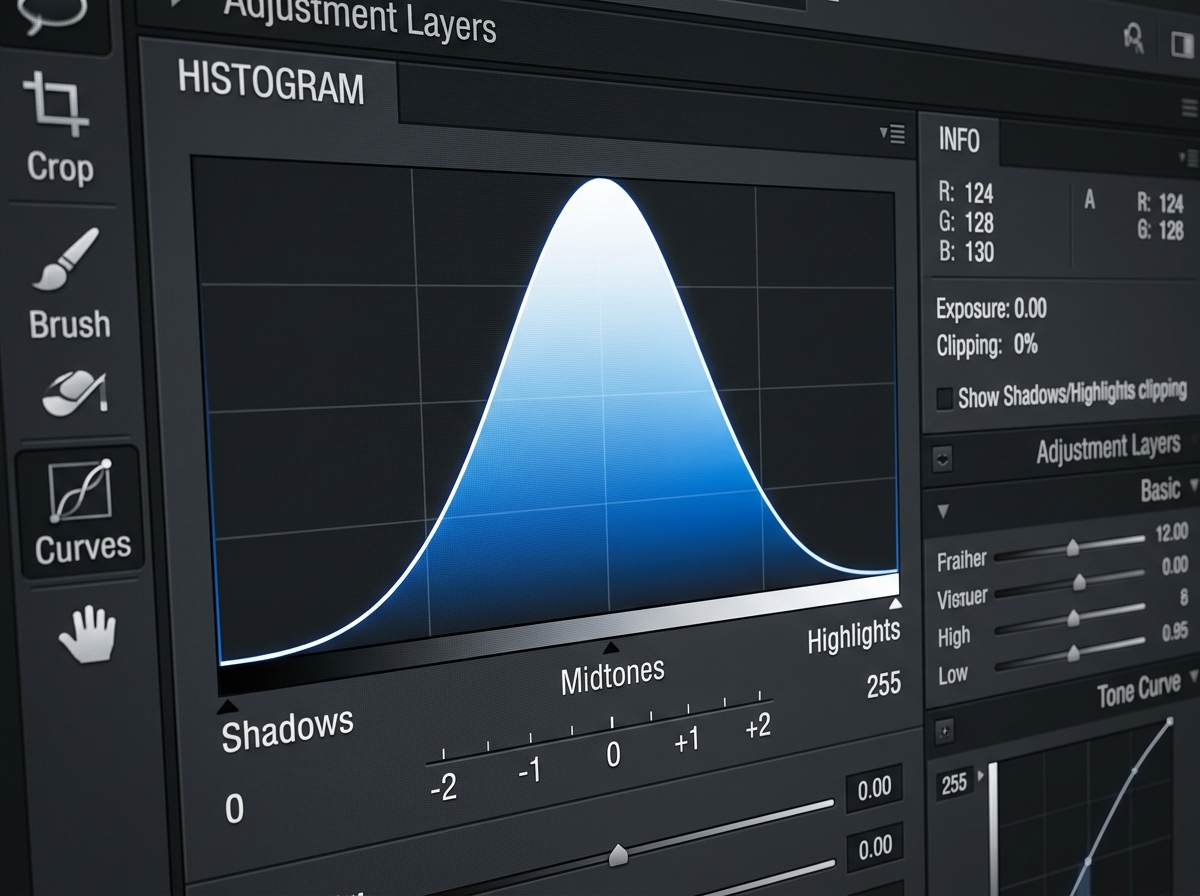
Exposure is the overall brightness of your image. While we always aim to get it right in-camera, sometimes the lighting is tricky. This is where the histogram becomes your most valuable tool.
The histogram is a graphical representation of the tonal range in your photo.
- The Left Side represents the blacks and shadows.
- The Middle represents the midtones.
- The Right Side represents the highlights and whites.
If the “mountain” of data is touching the far left edge, your shadows are “crushed” (pure black with no detail). If it’s touching the far right, your highlights are “clipped” or “blown out” (pure white). Our goal in photo editing basics is usually to balance the tonal distribution so we keep as much detail as possible. Use the Exposure slider for broad changes, then fine-tune with the Highlights and Shadows sliders to recover specific details.
Step 5: Adjusting White Balance and Temperature
Have you ever taken a photo indoors that turned out way too orange, or a snow scene that looked blue? That’s a white balance issue. Every light source has a “color temperature,” measured on the Kelvin scale.
In editing, we use the Temperature and Tint sliders to neutralize these color casts. A quick pro tip: use the “Eyedropper” tool. Click on something in your photo that should be a neutral gray or white (like a white t-shirt or a gray rock). The software will automatically calculate the correct white balance for you. From there, you can manually warm it up for a golden-hour glow or cool it down for a moody, cinematic feel.
Step 6: Enhancing Contrast and Tonal Depth
Contrast is the difference between the light and dark areas of your photo. Increasing contrast gives your image “punch” and makes it look less flat—which is common for RAW files.
However, don’t just stop at the Contrast slider. For more professional results, look at:
- Whites and Blacks: These set the extreme ends of your tonal range.
- Clarity: This increases “midtone contrast,” making textures pop.
- Texture: This is specifically great for fine details. For example, when we are enhancing bird feathers in editing, a little bit of Texture goes a long way without making the image look “crunchy” or over-processed.
Step 7: Perfecting Composition and Straightening
This is our favorite part at Ciber Conexão! You can have perfect exposure, but if your horizon is crooked or your subject is awkwardly placed, the photo won’t resonate.
The Crop tool is one of the most powerful weapons in your arsenal. We use it to:
- Straighten the Horizon: Nothing screams “amateur” like a tilted ocean.
- Apply the Rule of Thirds: Position your subject along the grid lines to create a more balanced and engaging composition.
- Remove Edge Distractions: Crop out that stray trash can or the half-a-branch poking into the frame.
- Change Aspect Ratios: Sometimes a photo works better as a 1:1 square for social media or a 16:9 cinematic crop.
For a deep dive into these techniques, check out our crop and composition editing tips. Sometimes “less is more”—cutting off a small section of a photo can transform it into a masterpiece.
Step 8-10: Cleaning, Sharpening, and Exporting
The final 10% of editing is what separates a good photo from a professional one. This is the “polishing” phase where we clean up imperfections and prepare the file for the world to see.
Step 8: Cleaning Up and Spot Removal
No matter how clean you think your gear is, sensor dust is a reality. These show up as small, blurry spots in the sky or flat areas of your photo. Additionally, there might be unwanted elements—a power line, a photobomber, or a distracting twig.
Most software offers a “Healing Brush” or “Clone Stamp” tool.
- Healing Brush: This is “smart.” It takes the texture from a source area and blends the color and lighting to match the destination. It’s perfect for removing distractions from bird photos or fixing skin blemishes.
- Clone Stamp: This creates an exact copy of pixels. It’s better for fixing edges or complex patterns where the “smart” healing might get confused.
Step 9: Sharpening and Noise Reduction
Every digital image needs a little bit of sharpening, especially if you shot in RAW. Sharpening works by increasing the contrast along the edges of objects. However, be careful! Over-sharpening creates “halos” (white lines around edges) that look very artificial.
On the flip side, if you shot in low light with a high ISO, your photo might have “noise”—that grainy, speckled look.
- Luminance Noise: Looks like film grain.
- Color Noise: Looks like random colored pixels.
When sharpening bird images in post, we recommend using a “Masking” slider. This allows you to apply sharpening only to the bird’s eye and feathers while leaving the out-of-focus background smooth and noise-free. Always zoom into 100% when doing this so you can see the actual effect on the pixels.
Step 10: Exporting for Web, Social, and Print
You’ve finished your edit! But you can’t just upload a RAW file to Instagram. You need to export it.
The settings you choose depend on where the photo is going:
- For Web/Social Media: Use the sRGB color space. This is the standard for screens. Export as a JPEG with a quality setting around 80-90%. If the file is for Instagram, resizing the long edge to 2048 pixels is a common standard.
- For Print: Use a higher-quality format like TIFF or a maximum-quality JPEG. You may also need to change the color space to Adobe RGB or ProPhoto RGB, depending on your printer’s requirements.
- For Archiving: Keep your original RAW file and your sidecar instruction files (like .XMP) so you can re-edit later.
Developing Your Style and Avoiding Beginner Mistakes
As you get comfortable with photo editing basics, you’ll start to develop a “style.” Maybe you love bright, airy landscapes, or perhaps you prefer dark, moody urban shots like those in our color grading for urban bird photography guide.
However, there are a few traps every beginner falls into. Here is how to avoid them:
- The “Saturation” Trap: Beginners often crank the saturation to 100 because they want the colors to “pop.” This usually makes people look like Oompa Loompas and grass look like radioactive slime. Instead, use Vibrance. Vibrance is “smarter”—it boosts the less-saturated colors first and protects skin tones.
- Over-Editing: We’ve all seen photos that look like they were deep-fried in HDR effects. If you find yourself spending three hours on one photo, step away. Come back 20 minutes later with fresh eyes. Often, you’ll realize you went too far.
- Ignoring the Histogram: Don’t just trust your eyes, especially if your monitor isn’t calibrated. Your screen might be too bright, leading you to underexpose your edits. Always check the histogram to ensure your data is where it should be.
- Fixing it in Post: Editing is a tool, not a miracle worker. “You can’t polish a turd,” as the old saying goes. Focus on getting the exposure, focus, and composition right in-camera first. This makes the editing process a joy rather than a chore. For a more “natural” look, see our tips on natural-looking edits for bird photos.
Frequently Asked Questions about Photo Editing
Should I edit every photo I take?
In short: No. We recommend a “culling” process. Out of a hundred shots, maybe five are worth editing. Focus your energy on your best work. This keeps your workflow efficient and prevents “editing burnout.”
What is the difference between saturation and vibrance?
Saturation is a global boost to all colors equally. Vibrance is selective; it ignores colors that are already saturated and focuses on the muted ones. It’s much harder to “break” a photo using vibrance than it is with saturation.
How do I avoid making my photos look “fake”?
The key is subtlety. Use reference images from photographers you admire. If you think you’ve added enough contrast, try backing it off by 10%. Also, improving clarity in bird shots should be done with a light touch to avoid that “crunchy” digital look.
Conclusion
Mastering photo editing basics is a journey of trial and error. There is no “correct” way to edit a photo because art is subjective. However, by following a structured workflow—starting with a solid RAW foundation, nailing your exposure and composition, and finishing with clean sharpening—you give your artistic vision the best possible chance to shine.
At Ciber Conexão, our goal is to provide practical, expert advice to help you bridge the gap between a “snapshot” and a “photograph.” Whether you are editing pigeon photos on mobile or using advanced photoshop tips for bird photos, the best edit is often the one that looks like it isn’t there at all.
Explore more of our photo editing categories and start transforming your images today!
